Saving reusable invoice items
Keep a list of the things you bill often, with their prices, so you can add them to an invoice in one click.
Where to find it
In the left menu, under Billing, click Invoice Items. You can also get there from an invoice: open Quick Add and click Manage Invoice Items.
Invoice items are managed by directors. Each center has its own list.
What an invoice item is
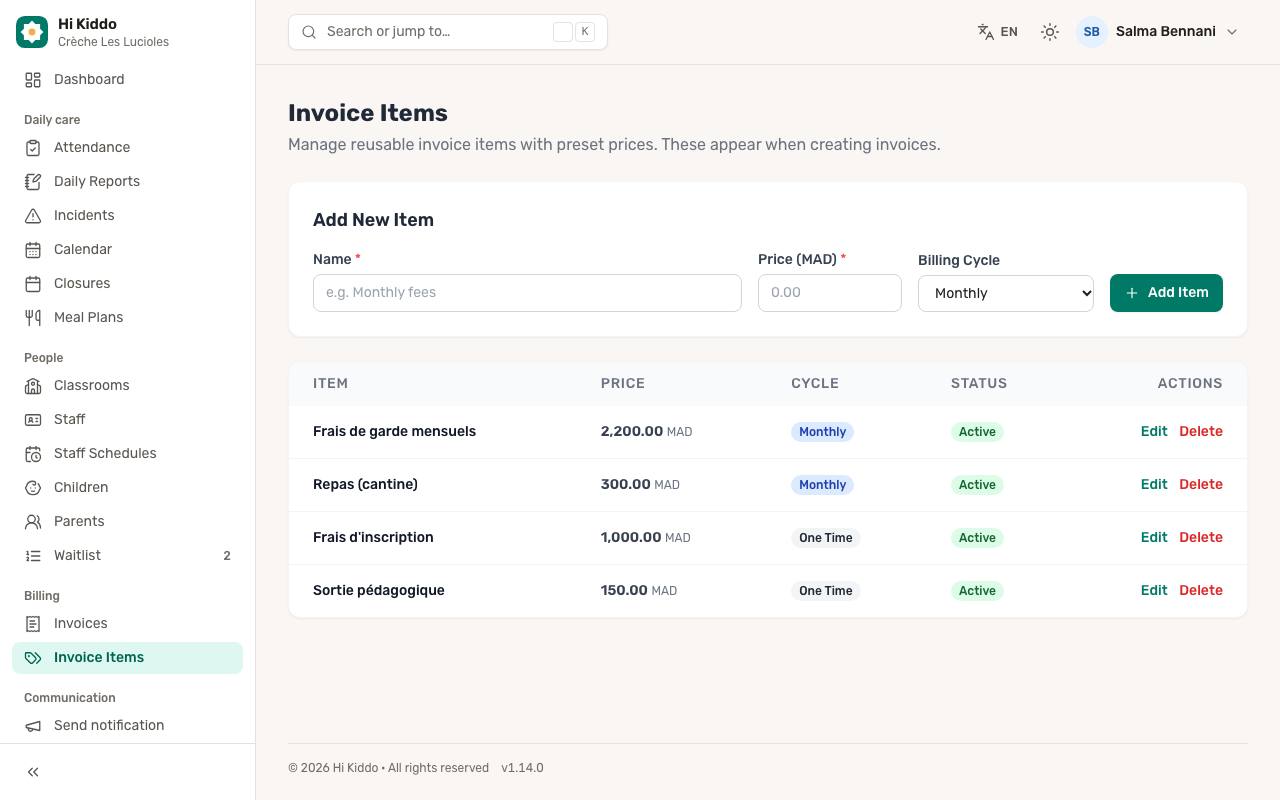
An invoice item is a ready-made invoice line, such as "Monthly Tuition" or "Registration fee", with a preset price. When you create an invoice, you pick it from Quick Add instead of typing the description and price every time. See Invoices.
How to add an item
At the top of the page, under Add New Item:
- Type the Name (required), for example "Monthly Tuition". This becomes the line's description on the invoice.
- Enter the Price (MAD) (required).
- Choose the Billing Cycle: Monthly, Quarterly, Yearly or One Time.
- Click Add Item.
The item appears in the list below, marked Active.
The items list
For each item you see:
- Item: its name.
- Price.
- Cycle: how often you usually bill it.
- Status: Active or Inactive.
Items are listed in alphabetical order.
How to edit an item
- Click Edit on the item's row. The row turns into a small form.
- Change the name, the price or the billing cycle.
- Untick Active to hide the item from Quick Add without deleting it, or tick it again to bring it back.
- Click Save, or Cancel to leave it unchanged.
How to delete an item
Click Delete on the item's row and confirm. The item is removed from your list.
Using items on an invoice
- Create a new invoice from Invoices with New Invoice.
- In the Invoice Items section, click Quick Add.
- Click an item. A new line is added with its name, a quantity of 1 and its price.
- Adjust the quantity or price on that invoice if needed.
Good to know
- Only Active items appear in Quick Add.
- Quick Add is available when creating an invoice, not when editing one. On an existing draft, use Add Item and type the line.
- Changing or deleting an item never changes invoices you already created: each invoice keeps its own copy of the description and price.
- The billing cycle is a label to help you organise your list. It doesn't create invoices automatically.
- Prices on this page and in Quick Add are shown in MAD. If an invoice uses another currency, the price is added as the same number, so check it.
- Platform administrators can choose a Center for each item, or All Centers (Global).
Troubleshooting
- My item doesn't show up in Quick Add. Check that it is Active, and that you are creating a new invoice rather than editing one.
- The item is refused when I add it. The name and the price are required, and the price can't be negative.