Billing families with invoices
Create an invoice for a child, send it to the parents by email, record the payment, and print or download it as a PDF.
Where to find it
In the left menu, under Billing, click Invoices. You can also open the quick-jump search (Ctrl+K, or ⌘K on a Mac) and choose New invoice.
Invoices are managed by directors only. Teachers never see billing. Parents with full access to a child receive the invoice by email and can find their invoices in the Hi Kiddo app once it is sent (they never see drafts).
The invoices page
At the top, three totals give you the picture:
- Total Pending: invoices sent and not yet paid (plus any overdue).
- Paid This Month: invoices marked as paid this month.
- Total Overdue: invoices with the Overdue status.
Below, you can filter the list by Status, Child, and due date (Due From and Due To), then click Filter. Clear resets the filters.
Each row shows the Invoice Number, Child, Amount, Status, Due Date and Created By, with buttons to view the invoice, download its PDF and, for drafts, edit or delete it.
How to create an invoice
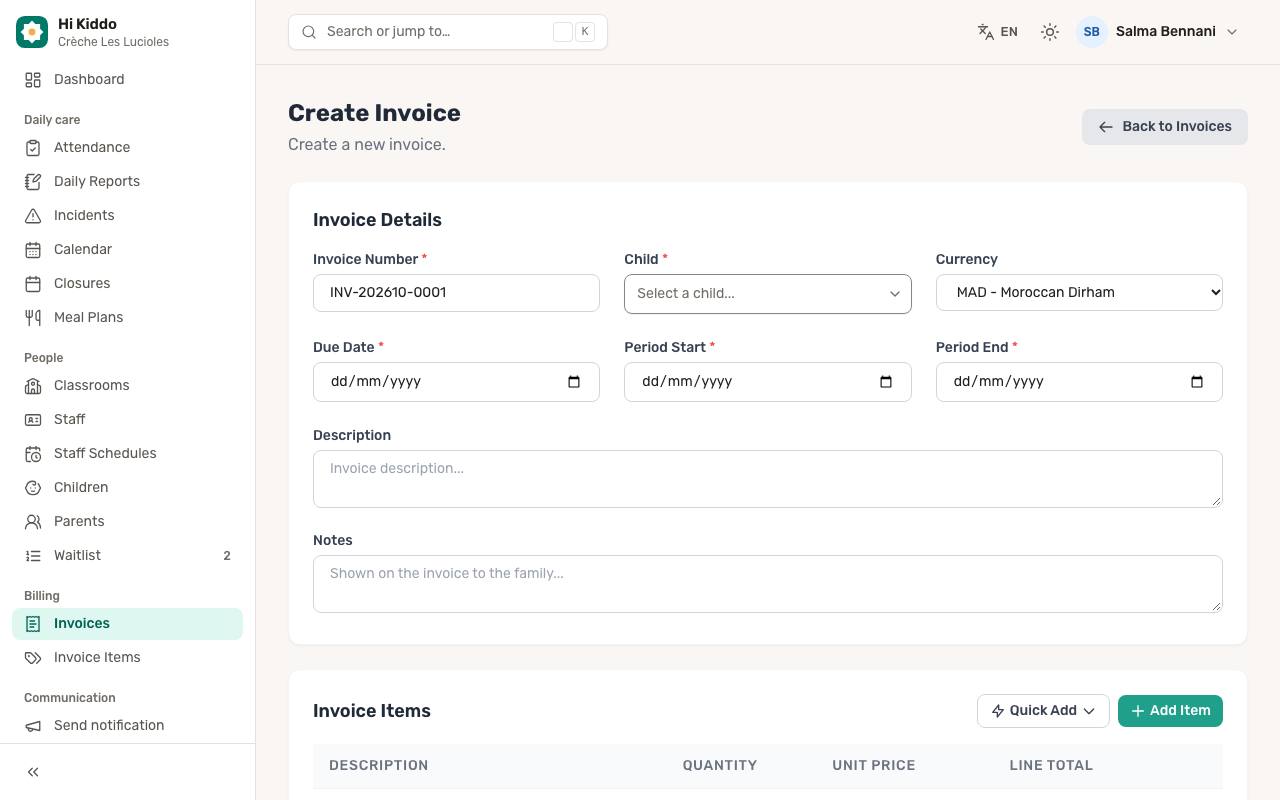
- Click New Invoice.
- Under Invoice Details, fill in:
- Invoice Number: suggested automatically, in the form INV-202610-0001 (year and month, then a running number). You can change it, but each number must be unique.
- Child (required).
- Currency: MAD, EUR or USD. MAD is the default.
- Due Date, Period Start and Period End (all required). The period end cannot be before its start.
- Description (optional), printed on the invoice.
- Notes (optional). Notes are visible to the family: they appear on the printed and PDF invoice and in the parent app.
- Under Invoice Items, add the lines to bill:
- One empty line is ready. Fill in its Description, Quantity and Unit Price. The Line Total is calculated for you.
- Click Add Item for another line, or the bin icon to remove one.
- Click Quick Add to pick one of your saved items with its price already filled in. See Invoice items.
- If needed, enter a Tax amount. It is an amount added to the Subtotal, not a percentage.
- Check the Total and click Create Invoice.
The invoice is saved as a Draft and opens on its own page. Nothing is sent yet.
How to edit or delete a draft
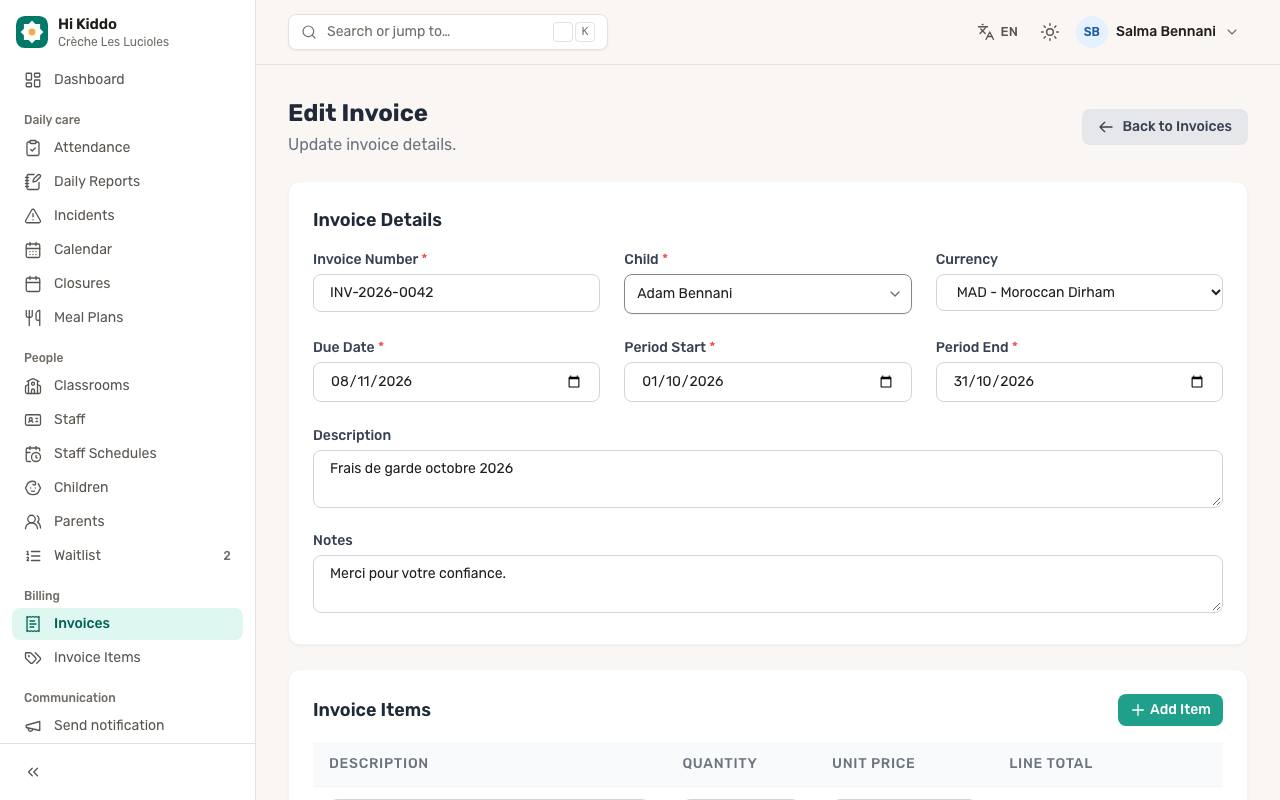
While an invoice is a Draft:
- Click Edit on the invoice page (or the pencil icon in the list), make your changes, then click Update Invoice.
- To delete it, click the bin icon in the list and confirm.
Once an invoice is sent or paid, it can no longer be edited or deleted.
How to send an invoice
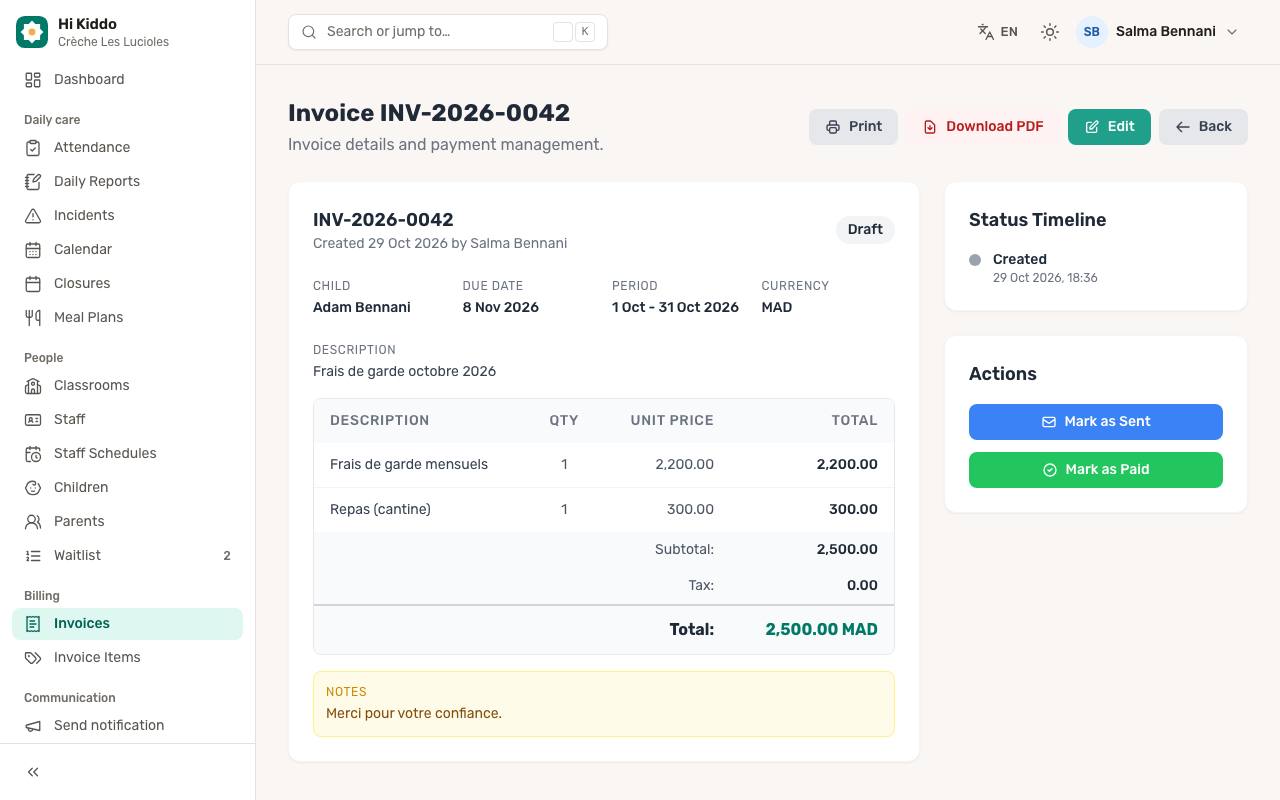
- Open the invoice.
- In the Actions box, click Mark as Sent.
The status becomes Sent. Each parent with full access to the child then receives an email, in their language, with the invoice number, total and due date, and a button to open the PDF. The link in the email works for 7 days; the invoice stays available in the app.
How to record a payment
- Open the invoice.
- Click Mark as Paid.
- In the Record Payment window, choose the Payment Method: Cash, Bank Transfer or Card.
- Click Confirm Payment.
The status becomes Paid, and a Payment Received box shows the amount, the date and the method. You can also mark a draft as paid directly, for example when a family pays on the spot. A paid invoice can't be changed back.
How to print or download an invoice
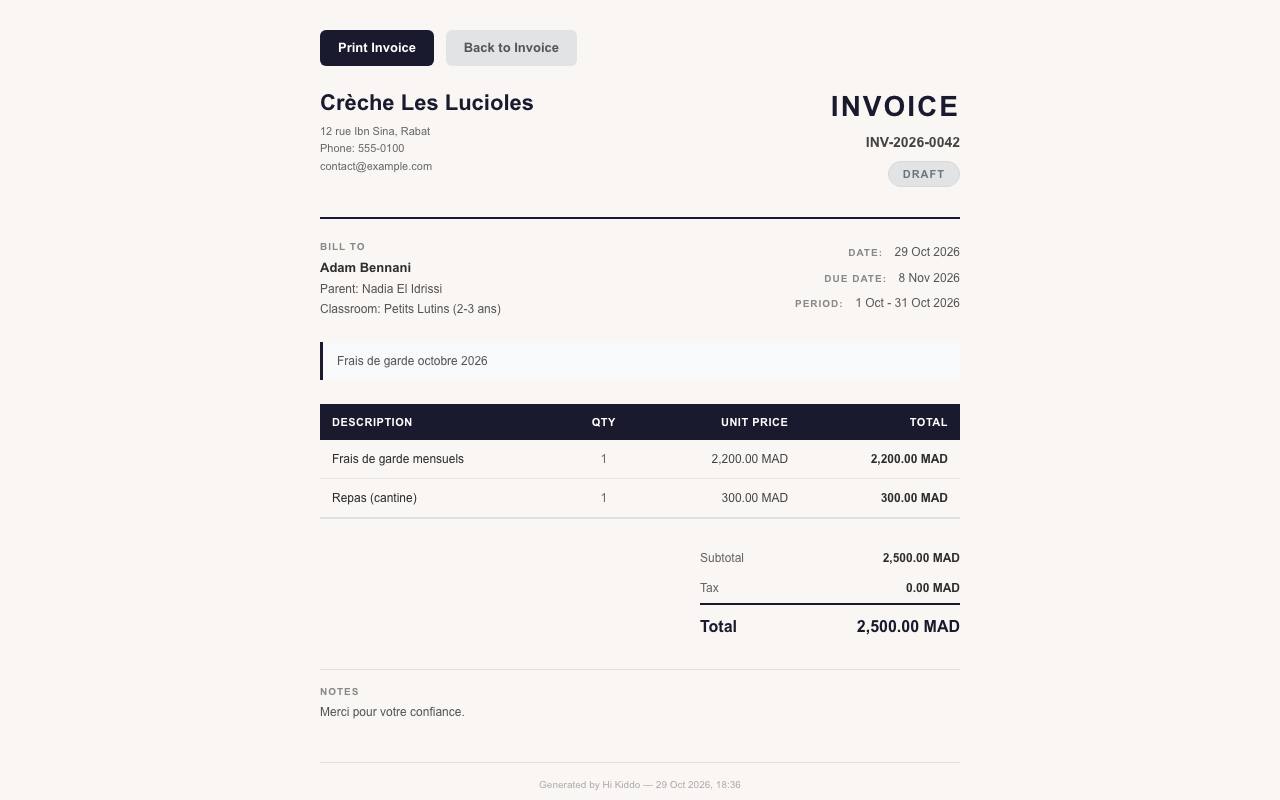
On the invoice page:
- Print opens a print-ready version in a new tab. Click Print Invoice there to print it or save it as PDF.
- Download PDF downloads the invoice as a file named like "invoice-INV-202610-0001.pdf". The same download is available from the list.
The printed invoice shows your center's logo, address, phone and email, the child (with a parent and the classroom) under Bill To, the items and totals, the notes, and, once paid, the payment details. Set your logo and contact details in Center settings.
Invoice statuses
- Draft: being prepared; it can still be edited or deleted, no email has been sent and the family doesn't see it in the app.
- Sent: emailed to the parents and waiting for payment.
- Overdue: set automatically every day at 06:00 (Morocco time) on sent invoices whose due date has passed. You can still click Mark as Paid.
- Paid: payment recorded.
- Cancelled also appears in the status filter; no button sets it.
The Status Timeline on each invoice shows when it was created, whether it was sent, and when and how it was paid.
Troubleshooting
- "The invoice number has already been taken." Another invoice uses that number. Change it and save again.
- A parent didn't receive the email. Only parents with full access to the child get it. Check the parent's email address and access in Children or Parents, and ask them to check their spam folder.
- The child I need isn't in the list. Only active children can be invoiced. Check the child in Children.
- Quick Add is missing. It only appears when creating an invoice and when your center has at least one active saved item.