Managing children
Add children, keep their profiles up to date, link them to their parents and store their documents.
Where to find it
In the left menu, under People, click Children.
- Directors see every child in the center and can add, edit and remove children.
- Teachers see My Children under Day to day: only the children of their classrooms, read-only (no Edit button on the profile).
- Parents see My Children: a card for each of their own children.
Finding a child
Type in Search by name..., or click Filter to choose a classroom (All Classrooms or one room) and a status. Click Filter to apply, or Clear to reset.
The list shows each child's Classroom, Parents and Health (an allergy badge and blood type). Directors and teachers can also download the list with Export (CSV or PDF). See Exports.
How to add a child
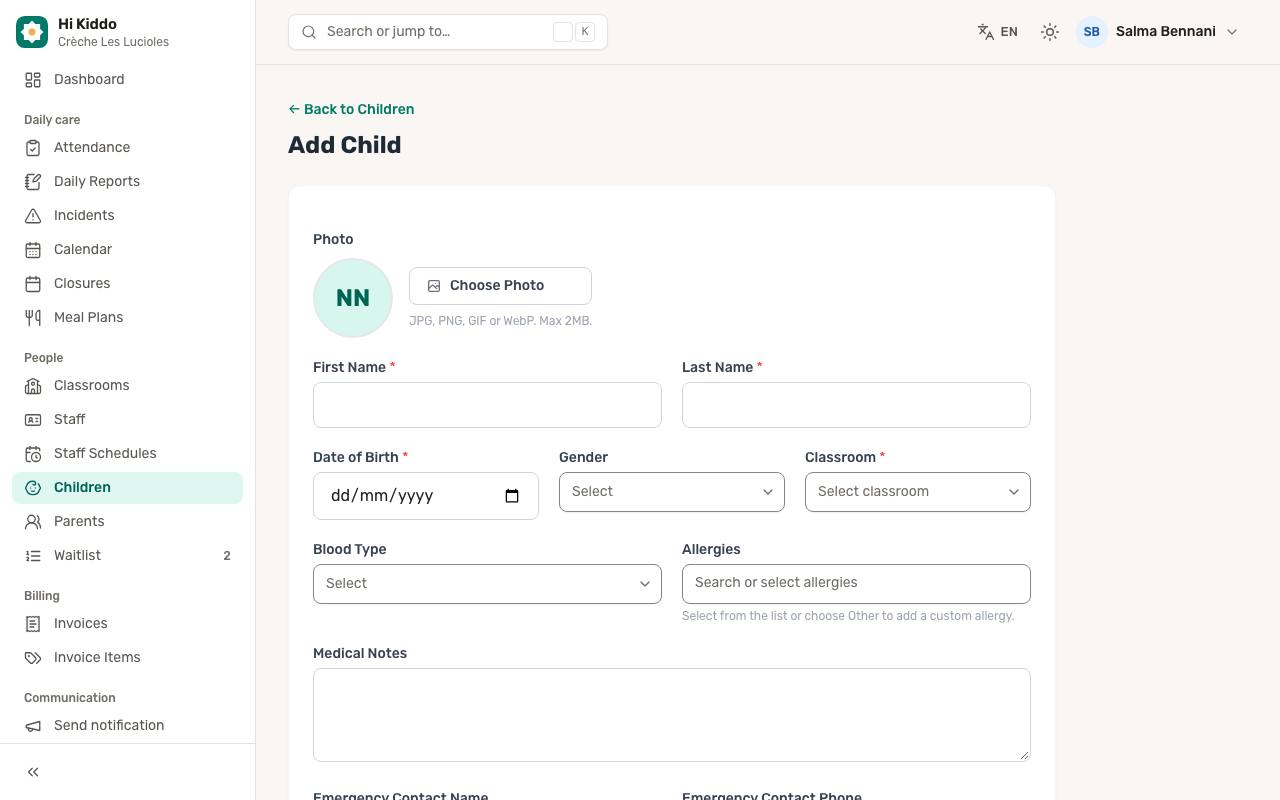
- Click Add Child.
- Optionally, add a Photo with Choose Photo (an image of 2 MB or less).
- Fill in First Name, Last Name and Date of Birth (required; the date must be in the past).
- Optionally choose a Gender.
- Choose a Classroom (required). Only active classrooms are listed.
- Optionally fill in Blood Type, Allergies, Medical Notes, Emergency Contact Name and Emergency Contact Phone. For allergies, pick from the list or choose Other to type your own.
- Under Parents / Guardians, use Select Parents to tick the parents who already have an account. The first parent you pick is marked as primary.
- Click Add Child.
Adding your first child completes a step of the setup guide. Your plan may limit how many active children you can have; if you reach it, a message links to the plans. See Plan and billing.
How to edit a child
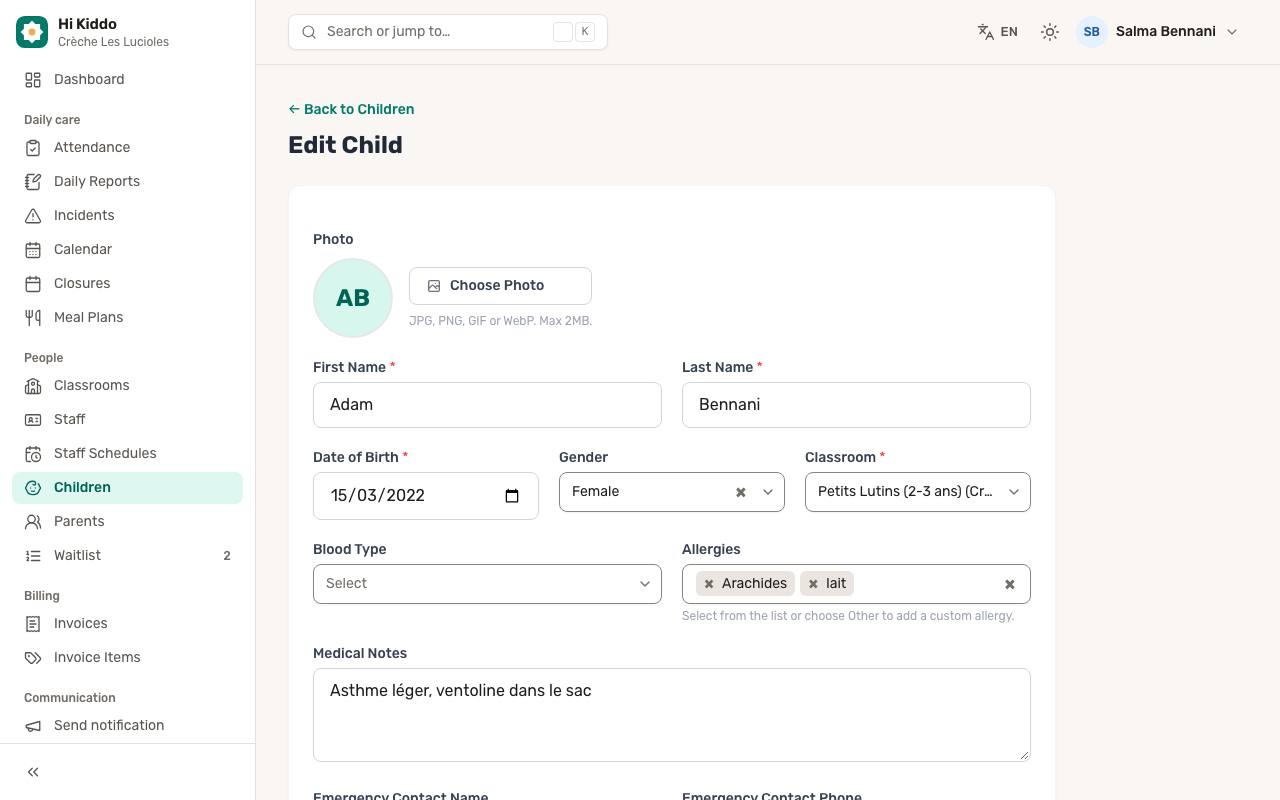
- On the list, click the pencil icon (Edit), or open the child and click Edit.
- Change what you need. To move a child to another room, change the Classroom.
- For linked parents, set each one's relationship under Relationship for each parent: (Mother, Father, Guardian, Grandparent or Other).
- Click Update Child.
Careful: the parents ticked in Select Parents are the ones kept. If you untick everyone, all parents are unlinked from the child.
The child's profile page
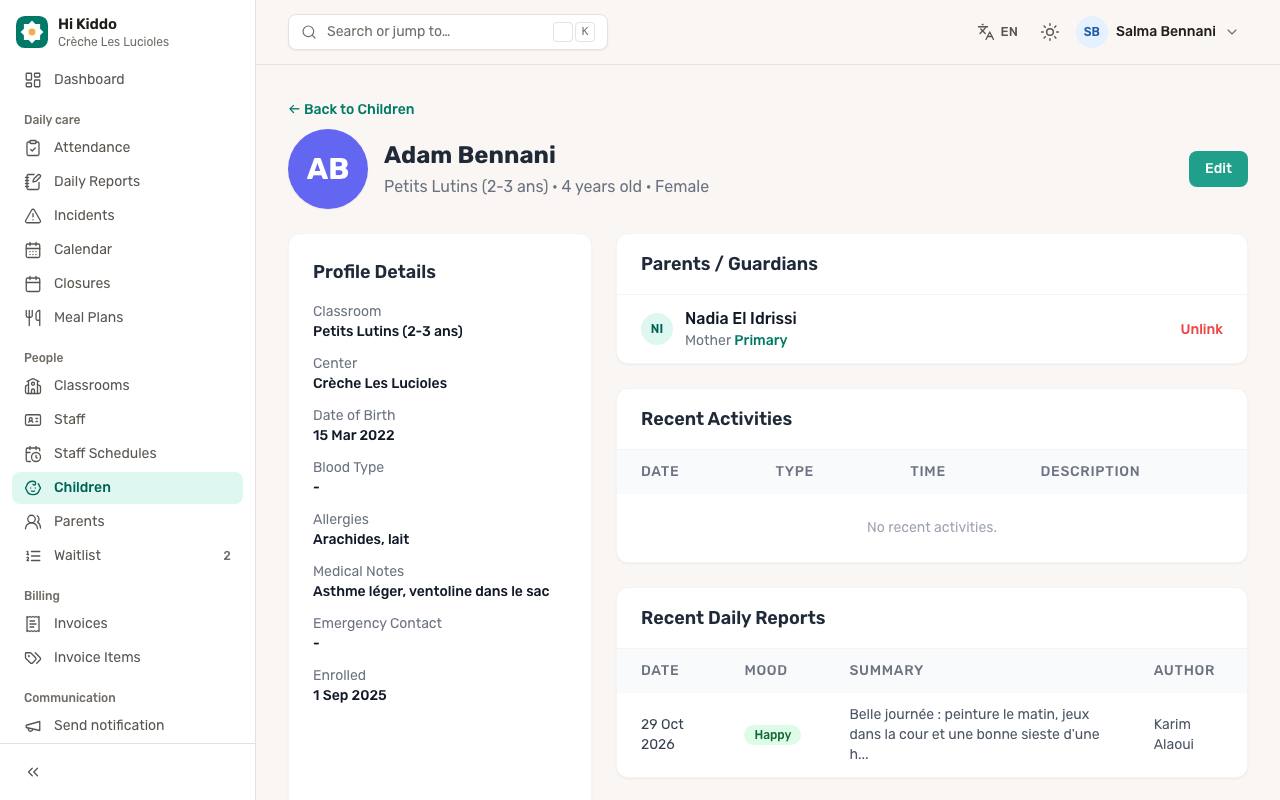
Click a child's name to open their profile. You see:
- Profile Details: classroom, center, date of birth, blood type, allergies, medical notes, emergency contact and enrollment date.
- Parents / Guardians: the linked parents and their relationship.
- Recent Activities and Recent Daily Reports: the last ten of each. See Daily reports.
- Documents (staff only).
- Pickup Authorization: the people allowed to collect the child. See Pickup authorizations.
How to link or unlink a parent
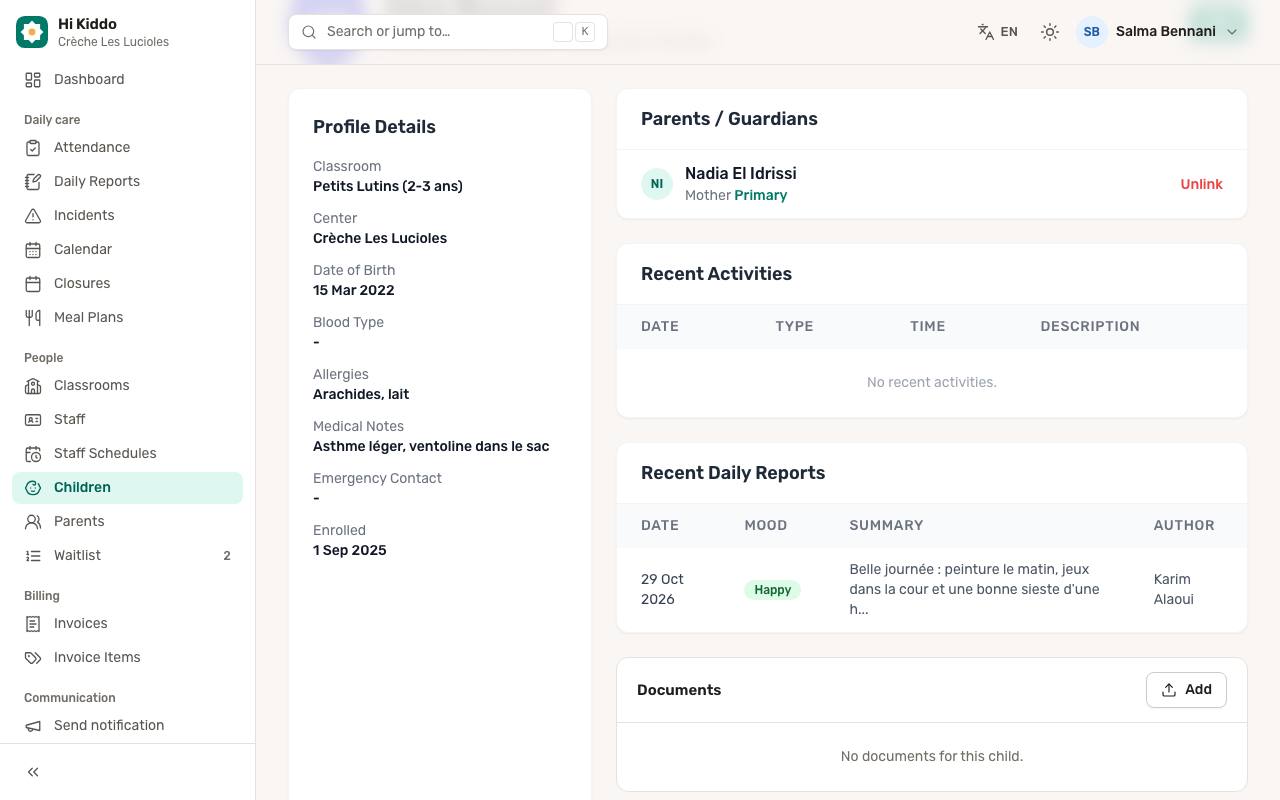
From the profile page (directors):
- In Parents / Guardians, pick someone in Select parent to link.... Only parent accounts of your center not yet linked are listed.
- Choose the relationship (Parent, Mother, Father or Guardian) and click Link, then confirm. This person will now see the child in the app: their day, photos and messages.
- To remove a link, click Unlink next to the parent and confirm. They no longer see the child in the app. Their account stays.
The parent needs an account first. See Parents, where you can also tick a parent's children directly. A Limited access badge means that family member sees the day, photos, calendar and documents but not invoices.
Child documents
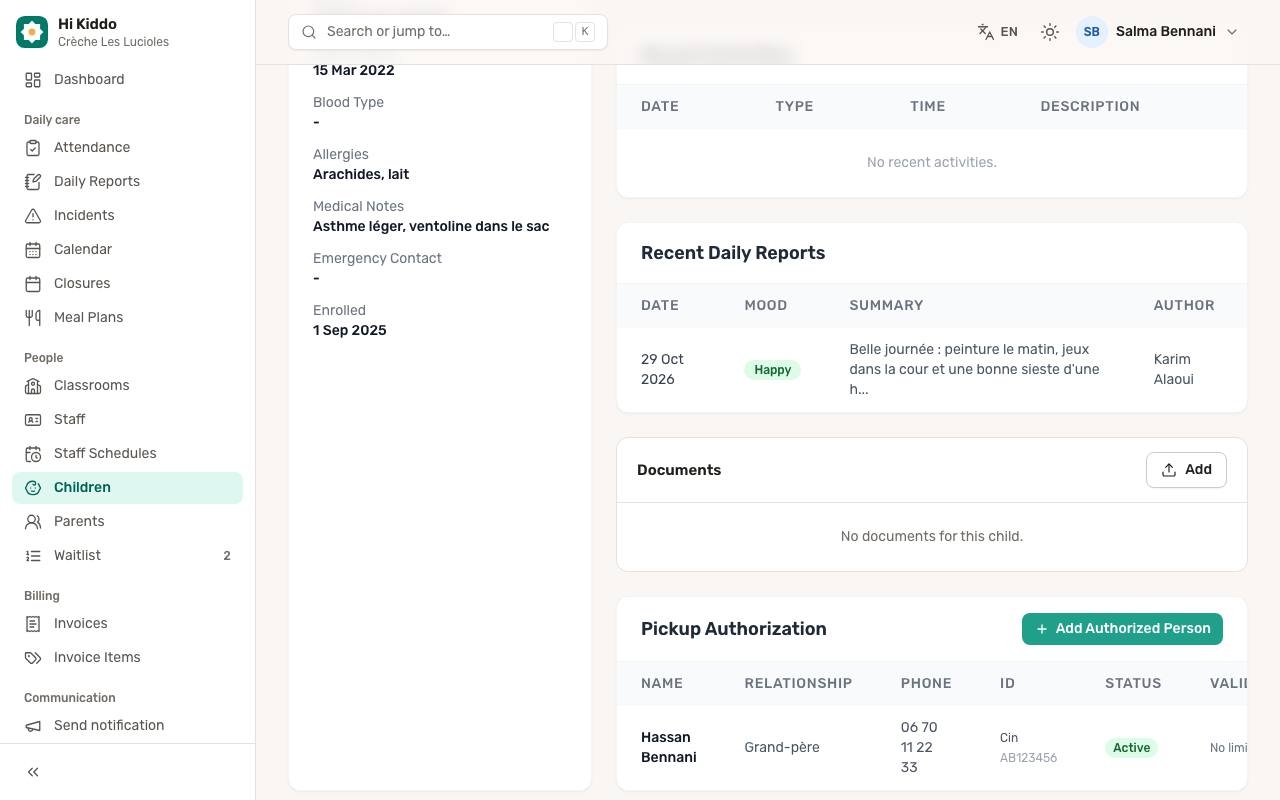
The Documents card holds private files about the child, such as a vaccination record. Parents don't see it.
To add one (directors):
- Click Add.
- Type a Title, for example "Vaccination record".
- Choose the file: PDF, image (JPG, PNG, WebP) or Word (DOC, DOCX), 10 MB max.
- Click Save.
Click a document's title or the open icon to download it. To delete one, click the cross icon and confirm; the file is deleted for good.
Teachers of the child's classroom can open documents but not add or delete them. Documents and the signed contract from an online enrollment appear here too, marked Online enrollment. See Waitlist and enrollment.
How to remove a child
- On the list, click the bin icon (Remove) on the child's row.
- Confirm by clicking Remove child.
The child disappears from your lists and the app, and no longer counts against your plan. This can't be undone from the dashboard, so only remove a child who has left for good.
Troubleshooting
The parent I want isn't in Select Parents. Create their account first on the Parents page.
A teacher can't see a child. Teachers only see children in their assigned classrooms. Check the child's Classroom and the teacher's assignment in Classrooms.
I can't choose a classroom. Only active classrooms are offered. Create one first.