Exporting lists
Download your children list or a day's attendance as a spreadsheet (CSV) or a printable page you can save as PDF.
Where to find it
There are two export buttons, each on the page whose data it exports:
- On the Children page (My Children for teachers), click Export at the top right.
- On the Attendance page, click Export at the top right.
Each Export button opens a small menu with two choices: CSV and PDF.
Directors and teachers see these buttons. Teachers' exports only include the children of their own classrooms. Parents don't have export buttons.
How to export the children list
- Open Children from the left menu.
- If you only want some children, use the page's filters first: search by name, choose a classroom, or choose Active or Inactive. The export follows the filters you have applied.
- Click Export, then:
- CSV to download a spreadsheet file named like "children_2026-10-29.csv".
- PDF to open a printable page in a new tab.
The children list contains, for each child: Name, Classroom, Age, Gender, Blood Type, Allergies, Emergency Contact and Status (Active or Inactive). Children are sorted by first name.
How to export attendance
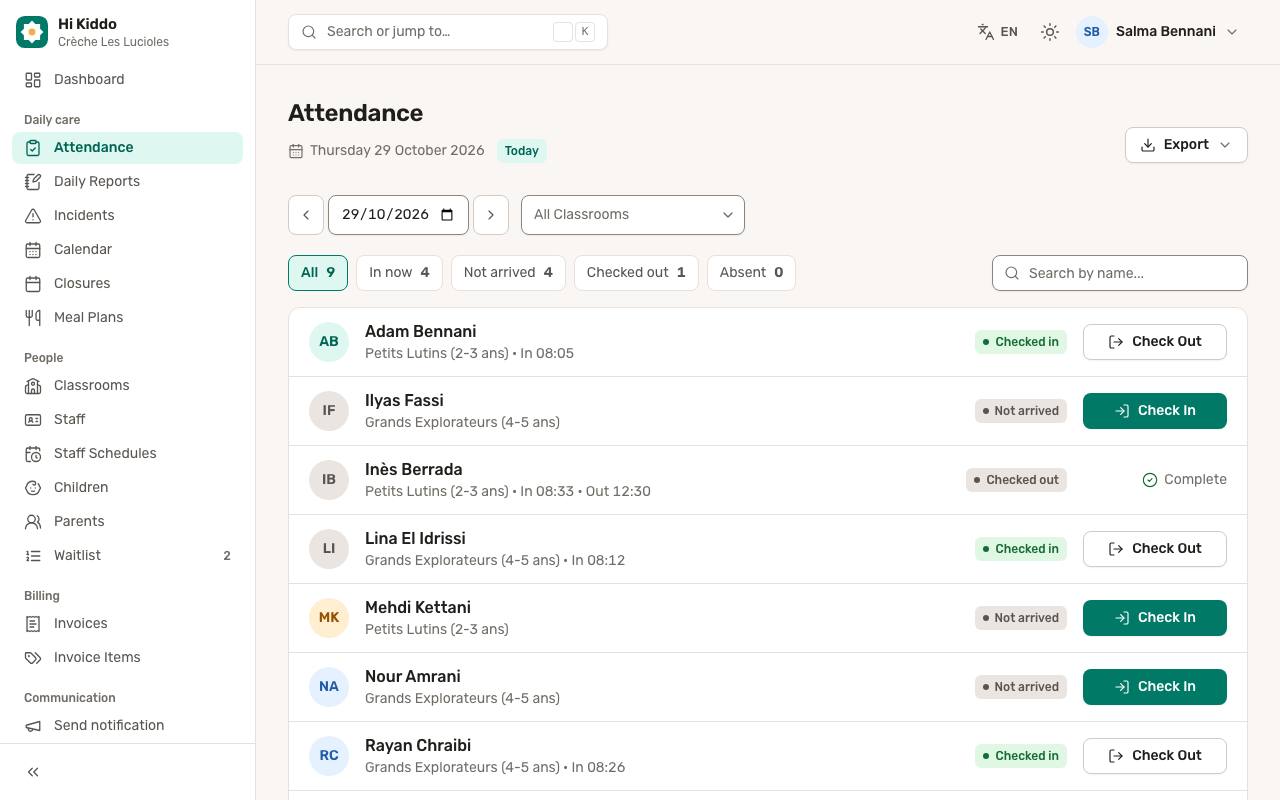
- Open Attendance from the left menu.
- Choose the day with the date controls, and a classroom if you only want one group. The export follows the date and classroom you have selected.
- Click Export, then:
- CSV to download a spreadsheet file named like "attendance_2026-10-29.csv".
- PDF to open a printable page in a new tab.
The attendance export contains, for each child: Child Name, Classroom, Status, Check-in Time and Check-out Time. The printable page also shows totals at the top: Total Records, Present, Absent and Late.
Saving as PDF
The PDF option opens a print-friendly page, and your browser's print window opens straight away.
- In the print window, choose Save as PDF (the exact wording depends on your browser) as the printer, or pick a real printer.
- Click Save or Print.
If you closed the print window, click the Print / Save as PDF button at the top of the page to open it again. The page header shows your center's name and the date.
Opening a CSV file
A CSV file opens in Excel, Google Sheets, Numbers or LibreOffice. In most cases you can simply double-click it. If accents look wrong in Excel, use Excel's import option (Data, then From Text/CSV) and choose UTF-8.
Good to know
- The attendance export only lists children who have an attendance record for that day (checked in, absent or excused). Children who have not arrived yet are not in the file.
- Times in the attendance CSV use the 12-hour format, for example "8:15 AM".
- For platform administrators, both exports follow the center filter of their page: the attendance export covers all centers for the chosen day unless a center is chosen on the Attendance page.
- To print an invoice, use the buttons on the invoice itself; see Invoices.
Troubleshooting
- Nothing happens when I click PDF. Your browser may be blocking the new tab. Allow pop-ups for Hi Kiddo and try again.
- The file is missing some children. Check the filters on the page before exporting: a classroom, a search or a status filter limits the export. Teachers only get the children of their own classrooms.
- The attendance file is empty. No attendance was recorded for that day and classroom yet. See Attendance.