Planning weekly meals
Build a Monday-to-Friday menu, check it against the children's allergies, and publish it for families.
Where to find it
In the left menu, under Daily care, click Meal Plans.
Directors create, edit, publish and delete meal plans. Teachers and parents of the center can open meal plans too, but cannot change them, and parents only see published plans.
The meal plans list
Each week is shown as a card with:
- A Current Week, Upcoming or Past label.
- Its status: Draft or Published.
- How many meals are planned and who created it.
- A View button, and an Edit button while it is still a draft.
How to create a meal plan
-
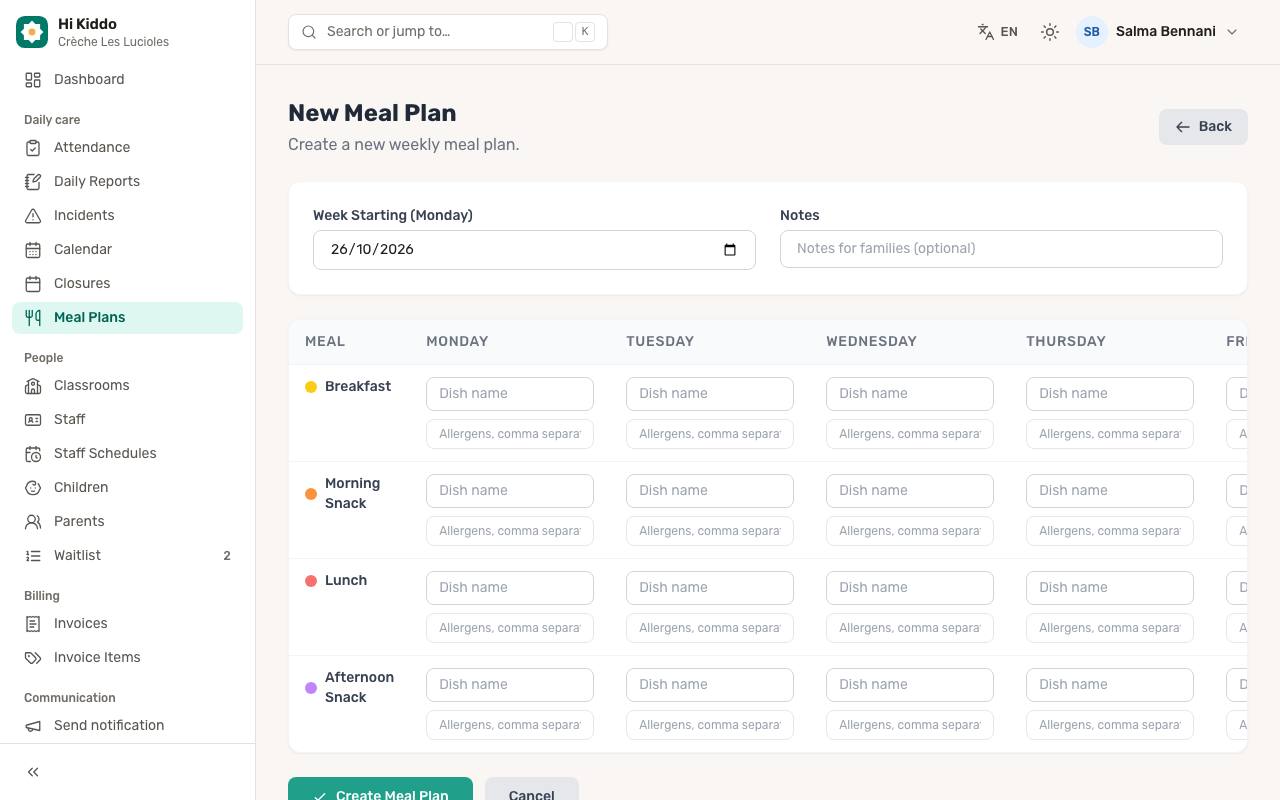
On the Meal Plans page, click New Meal Plan.
-
Choose the Week Starting (Monday). It starts on the current week. If you pick another day, Hi Kiddo moves it to the Monday of that week.
-
Add Notes for families if you like (for example "Fresh fruit every afternoon").
-
Fill in the weekly grid. There is a column for each day from Monday to Friday, and a row for each meal: Breakfast, Morning Snack, Lunch and Afternoon Snack. In each box:
- Type the Dish name.
- Type the Allergens, comma separated, for example "Milk, Eggs".
Leave a box empty when there is no meal at that time: empty boxes are skipped.
-
Click Create Meal Plan.
The plan opens as a Draft. Families don't see it yet.
How to check for allergies
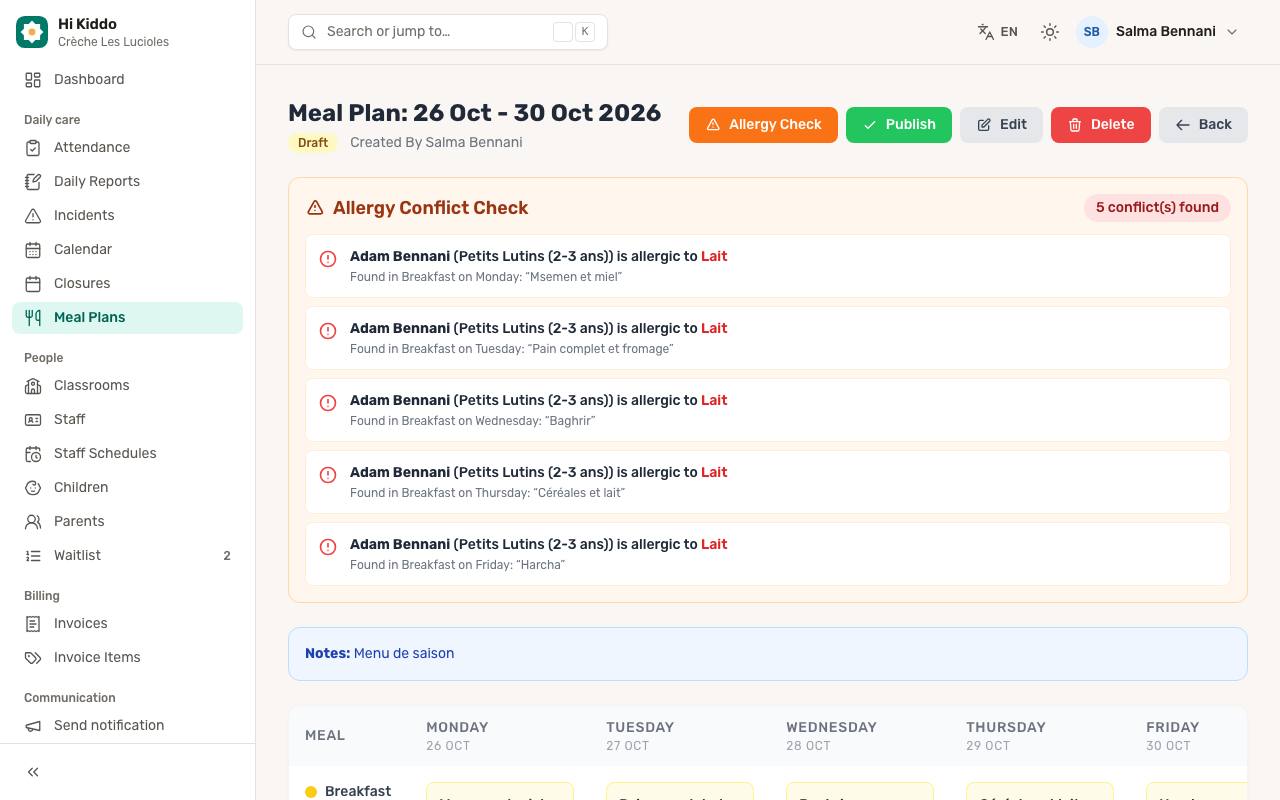
Before publishing, check the menu against the allergies recorded on each child's profile.
- Open the meal plan.
- Click Allergy Check.
An Allergy Conflict Check box appears above the grid:
- No conflicts found means none of the allergens you listed matches an allergy of an active child in the center.
- Otherwise you see how many conflicts were found, and for each one: the child, their classroom, the allergen, and where it was found (for example "Found in Tuesday's Lunch: Pasta gratin").
The check compares the words you typed in the allergens boxes with the allergies on each child's profile, ignoring capital letters. Use the same names as on the children's profiles (such as "Milk", "Eggs", "Peanuts", "Gluten") so that matches are found. "Milk" and "Dairy", for example, are not treated as the same thing. Allergies are set on each child's profile; see Children.
How to edit a draft
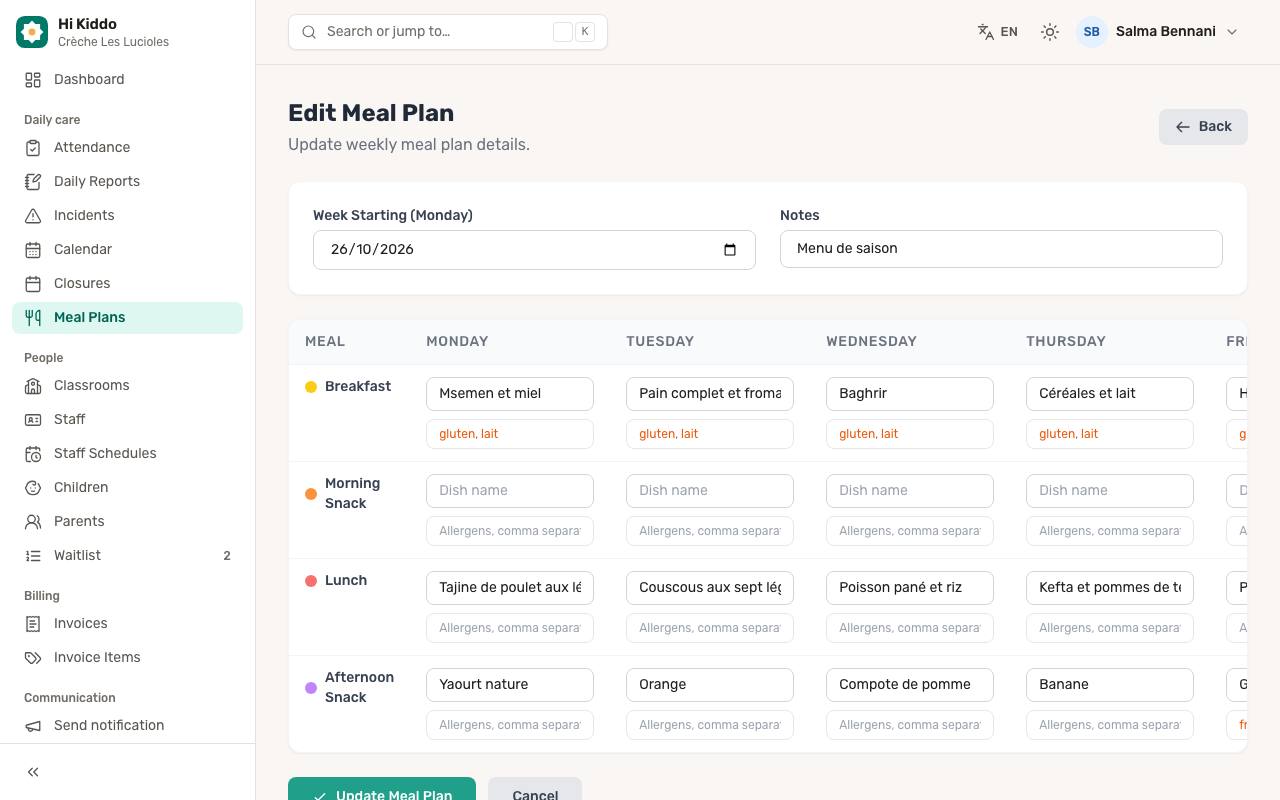
- Open the plan and click Edit, or click Edit on its card.
- Change the week, notes, dishes or allergens.
- Click Update Meal Plan.
How to publish a meal plan
- Open the plan.
- Click Publish and confirm.
Parents can now see the plan. Publishing does not send a notification. Once published, a plan can no longer be edited or deleted, so run the Allergy Check first.
How to delete a draft
Open the plan, click Delete and confirm. Only drafts can be deleted.
Reading a plan
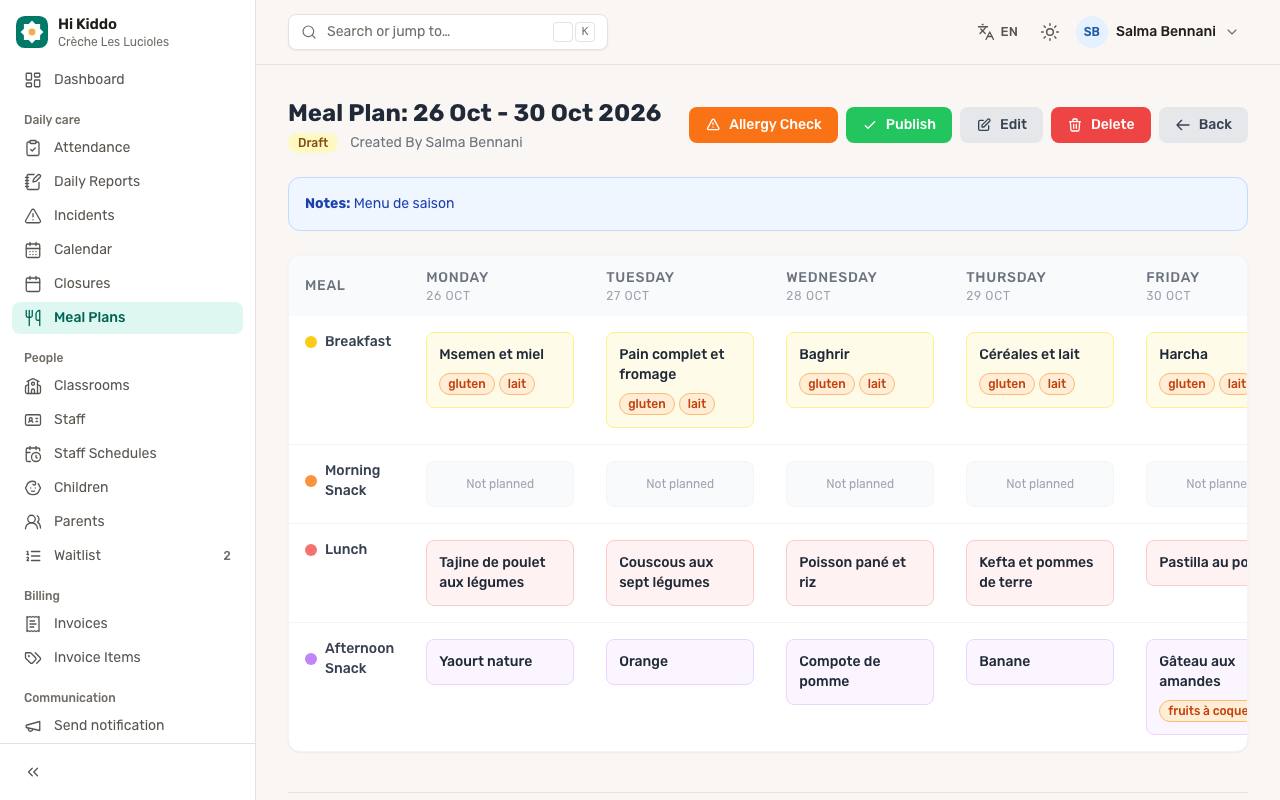
The plan page shows the week's dates, the status, who created it, your notes, and the grid with each dish and its allergens as small tags.
Good to know
- Meal plans cover weekdays only (Monday to Friday).
- Platform administrators also choose a Center when creating a plan, and can filter the list by center.
Troubleshooting
- I can't find the Edit or Delete button. The plan is already published. Published plans are locked.
- The allergy check finds nothing, but I know a child is allergic. Check that the allergy is on the child's profile and that the allergen is spelled the same way in the meal plan. Inactive children are not included.