Sharing daily reports
Write a short report about a child's day, publish it to the family, and find past reports.
Where to find it
In the left menu, click Daily Reports. Directors find it under Daily care; teachers and parents find it under Day to day. Directors can also open the quick-jump search (Ctrl+K, or ⌘K on a Mac) and choose New daily report.
Who can do what on the web panel:
- Directors can write, publish, unpublish and delete reports for every child in the center.
- Teachers can read the reports (drafts and published) for children in their classrooms, without the Publish, Unpublish and Delete buttons. Teachers write and publish reports from the teacher app; see Mobile app for teachers.
- Parents only ever see published reports about their own children.
How to write a report
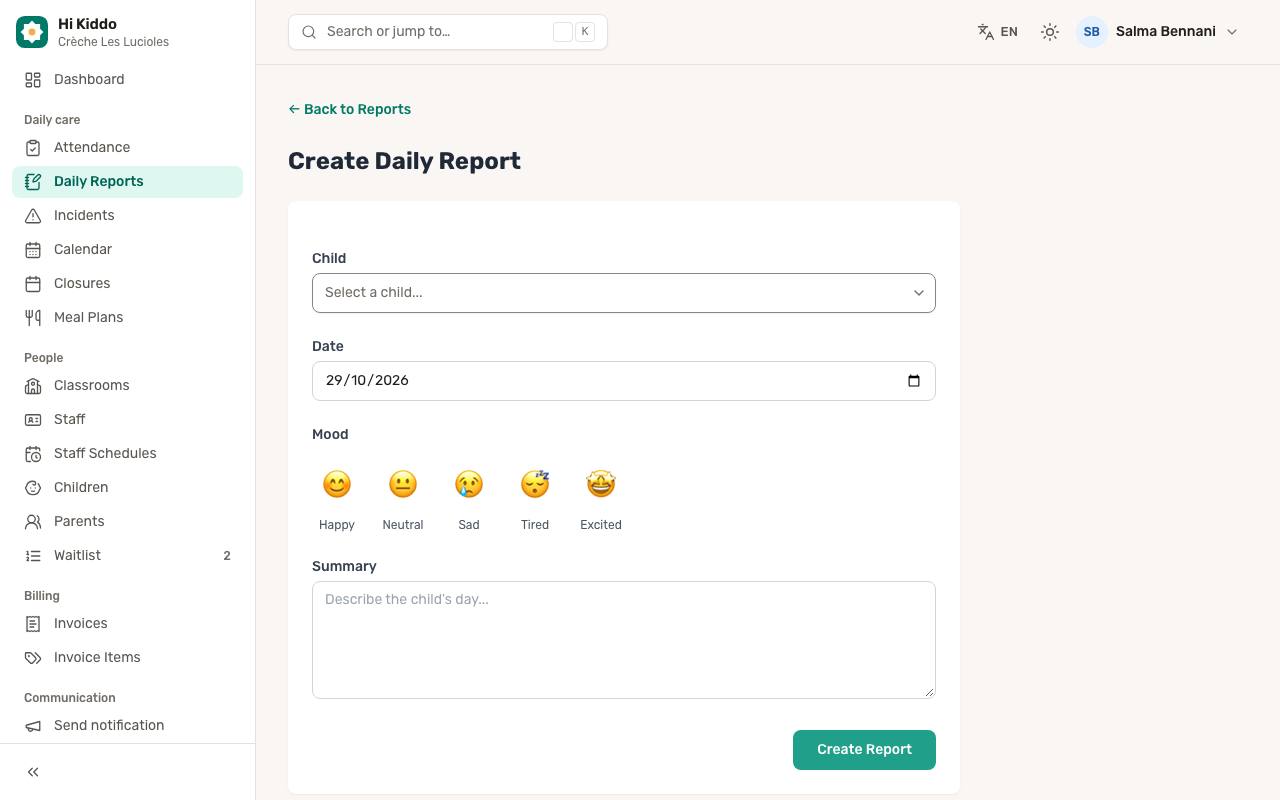
- On the Daily Reports page, click New Report.
- Choose the Child.
- Check the Date. It starts on today, but you can change it.
- Pick a Mood: Happy, Neutral, Sad, Tired or Excited.
- Write the Summary, telling the family how the day went (up to 2,000 characters).
- Click Create Report.
All four fields are required. The new report is saved as a Draft: the family does not see it yet.
How to publish a report
Publishing is what shares the report with the family.
From the list:
- Find the report (the Drafts tab lists every report not yet shared).
- Click the paper-plane icon (Publish) on its row.
- Confirm with Publish report.
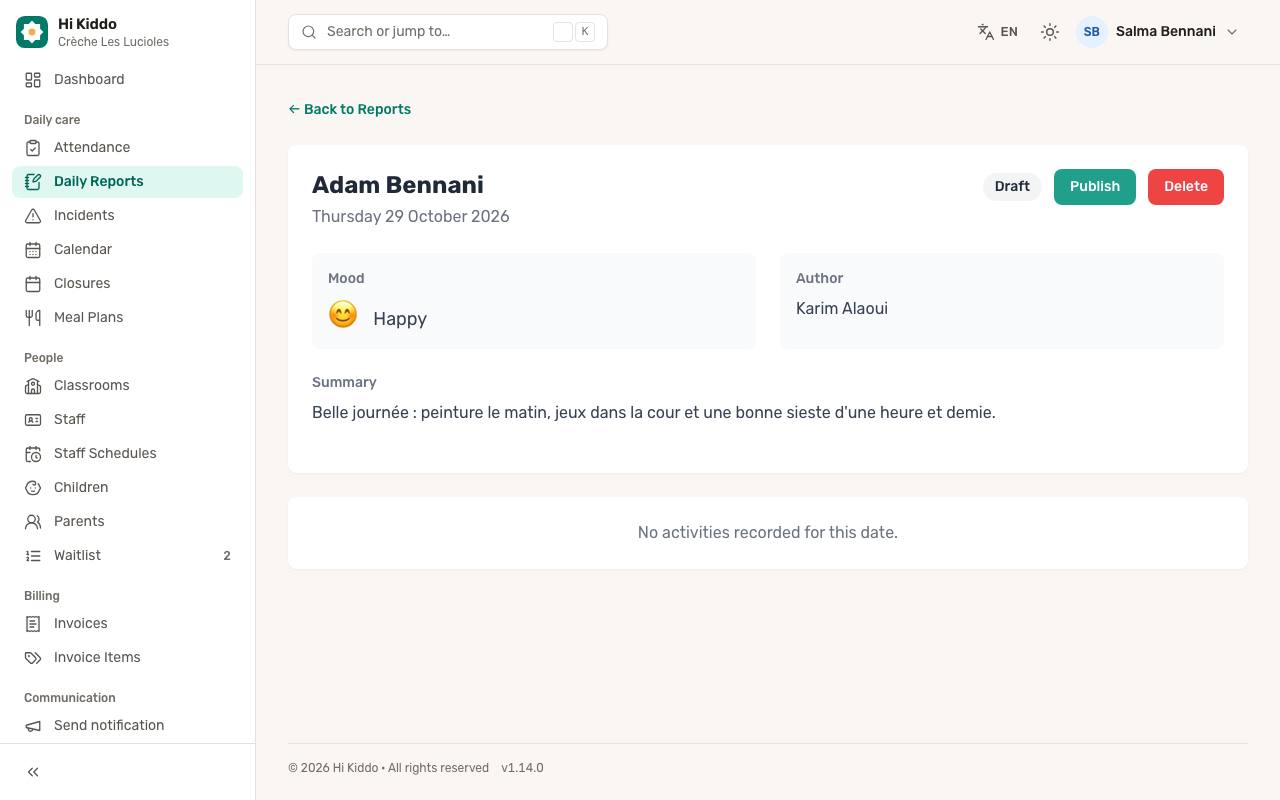
From the report itself, open it and click Publish.
As soon as it is published, the child's parents get a push notification ("Emma's daily report is ready") with the start of your summary, and the report appears in their app and on their Daily Reports page.
How to unpublish a report
If you published too early or need to correct something:
- Click the eye icon (Unpublish) on the report's row and confirm with Unpublish report, or open the report and click Unpublish.
- The report goes back to Draft and the family no longer sees it.
You can publish it again at any time. Note that each time you publish, the family is notified again.
How to delete a report
- Click the bin icon (Delete) on the report's row and confirm with Delete report, or open the report and click Delete.
- The report is removed for everyone.
Finding reports
Use the tabs at the top of the list:
- All: every report.
- Drafts: reports not yet shared with families.
- Published: reports families can read.
To narrow the list, choose a Child, a From date and a To date, then click Filter. Click Clear to remove the filters. Reports are listed newest first, 15 per page.
On a large screen the list shows the child, the date, who wrote it ("By Ms. Amina"), the mood and whether it is Draft or Published.
What a report shows
Open a report to see:
- The child's name and the date.
- The Mood and the Author, with the time it was published.
- The full Summary.
- The Activities recorded for that child on the same day (meals, naps, and so on, logged in the teacher app). If nothing was logged, you see "No activities recorded for this date."
What parents see
Parents see a card for each published report about their child, with the date, the mood and the first lines of the summary. They click a card to read the whole report. If they have several children, they can filter by child and by date.
Good to know
- Writing a report on the web never notifies anyone on its own. Only publishing does.
- Reports can be written for any date, so you can catch up on a day you missed.
Troubleshooting
- A parent says they can't see a report. Check that it shows Published, not Draft. Also check that the parent is linked to the child in Children.
- The parent didn't get a notification. Notifications go to parents who are signed in to the app with notifications allowed. See Mobile app for parents.