Recording incidents
Write up an accident or incident involving a child, keep track of telling the family, and close it once it is resolved.
Where to find it
In the left menu, click Incidents. Directors find it under Daily care; teachers find it under Day to day. You can also open the quick-jump search (Ctrl+K, or ⌘K on a Mac) and choose New incident report.
Who can do what:
- Directors can create, edit, resolve and delete incident reports for every child in the center.
- Teachers can do the same for children in their own classrooms.
- Parents are notified when a report about their child is created, and can read reports about their own children.
How to write an incident report
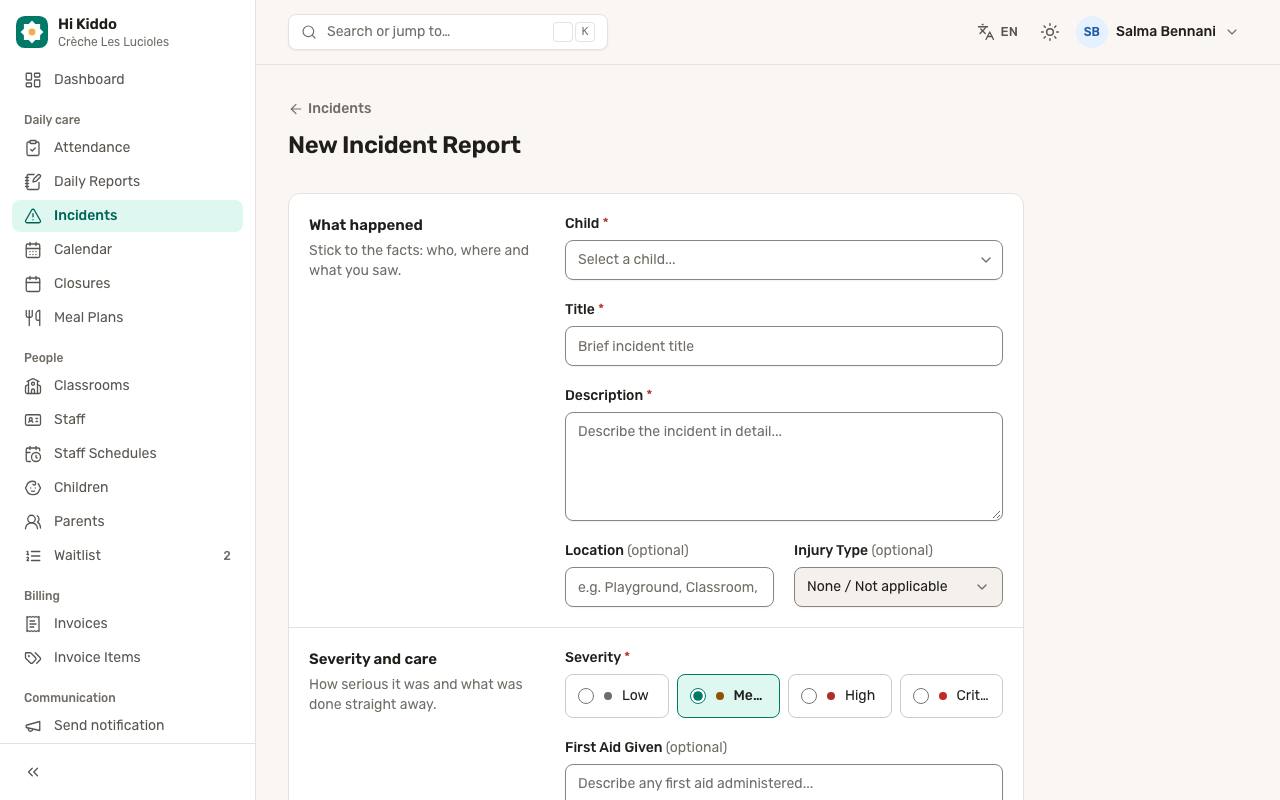
- On the Incident Reports page, click New incident report.
- Under What happened, fill in:
- Child (required).
- Title (required), a short summary such as "Fell from the slide".
- Description (required). Stick to the facts: who, where and what you saw.
- Location (optional), for example Playground or Classroom.
- Injury Type (optional): Bruise, Cut, Scrape, Fall, Bite, Bump, Sprain, Burn, Allergic reaction, Nosebleed or Other. Leave it on None / Not applicable if there was no injury.
- Under Severity and care, choose the Severity: Low, Medium, High or Critical. Then describe any First Aid Given.
- Under Follow-up, tick Follow-up required if the team still needs to do or watch something, and add Follow-up Notes.
- Click Submit Report.
As soon as you submit, the child's parents receive a push notification, in their own language, telling them the center added an incident report about their child and asking them to contact the center for details. The details are not included in the notification.
The report page
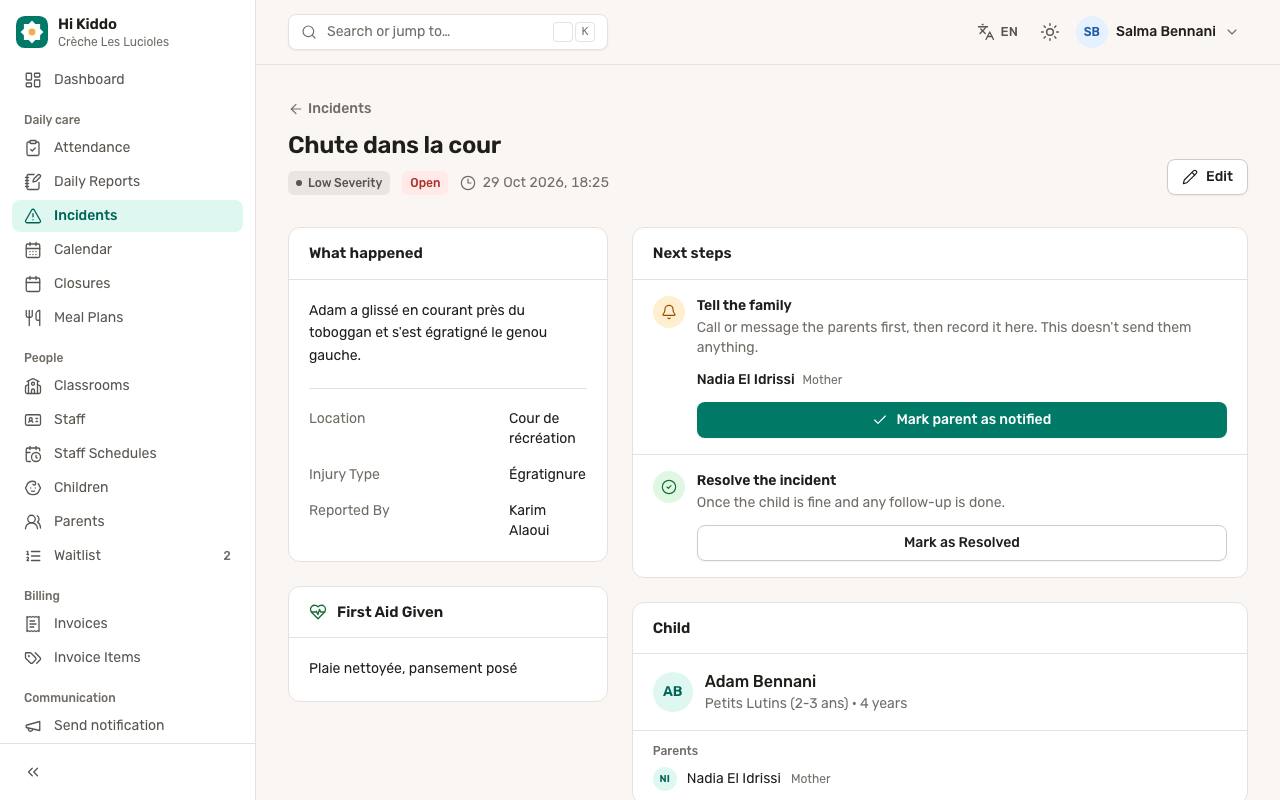
Click a report's title to open it. You see:
- The title, the severity, the status and when it was reported.
- What happened, with the location, injury type and who reported it.
- First Aid Given and Follow-up required, if filled in.
- The Child card, with the classroom and the linked parents.
- A Timeline with three steps: Reported, Parent Notified and Resolved, each with the time and the person who did it.
On the right, a Next steps box guides you through what is left to do.
How to record that you told the parents
The push notification is automatic, but you should still speak to the family. The Tell the family step lists the child's parents with their phone numbers, so you can call them directly.
- Call or message the parents.
- Click Mark parent as notified and confirm.
This only records the conversation: it does not send the parents anything. Your name and the time are added to the timeline. Until you do this, the list shows Not notified next to open reports.
How to resolve an incident
Once the child is fine and any follow-up is done:
- Open the report.
- Under Resolve the incident, click Mark as Resolved and confirm.
The status changes to Resolved and the time is added to the timeline.
How to edit a report
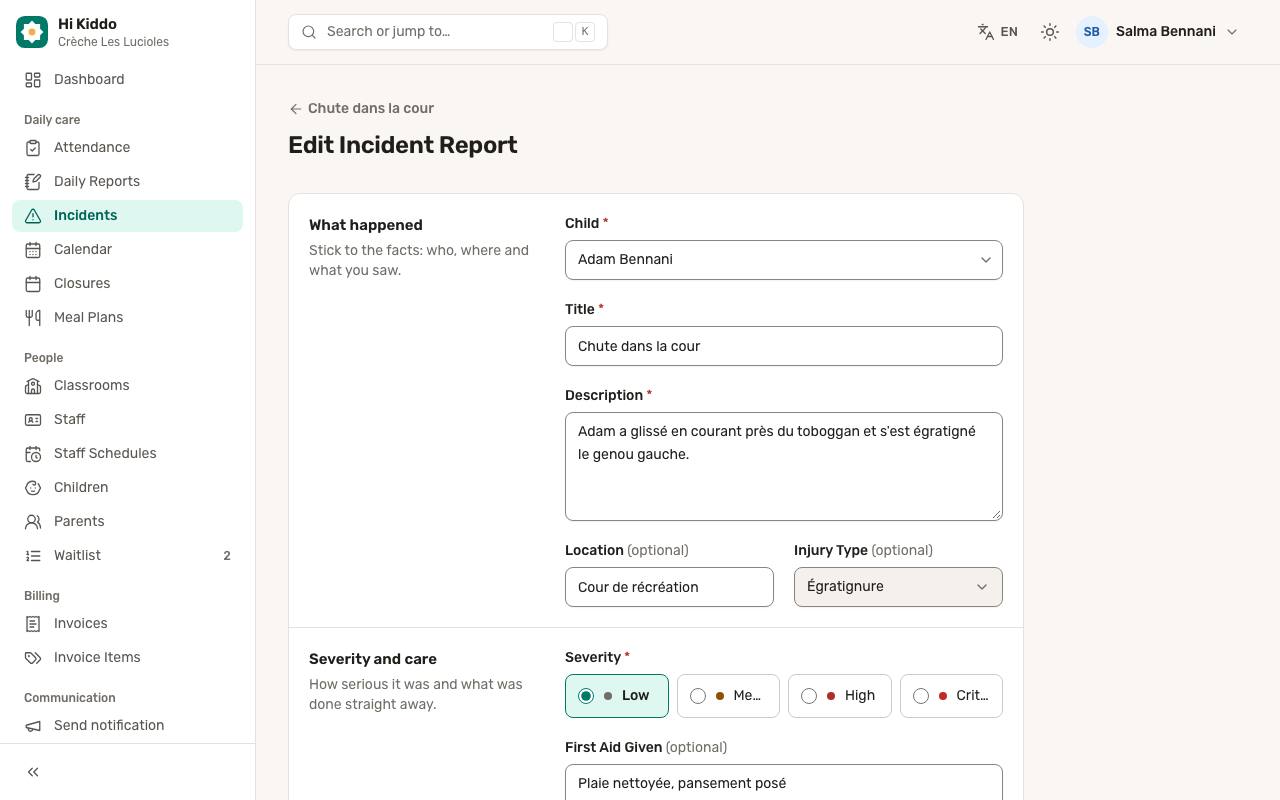
- Open the report and click Edit (or click the pencil icon in the list).
- Change what you need. When editing, you can also set the Status: Open, Investigating, Resolved or Closed.
- Click Save changes.
Editing does not notify the parents again. Changing the status to Resolved here does not record a resolution time; use Mark as Resolved for that.
How to delete a report
In the list, click the bin icon on the report's row, then confirm with Delete report. The report and its timeline are permanently deleted.
Finding reports
Use the filters at the top of the list: All Statuses, All Severities, All Children, and a From and To date for when the report was written. Click Filter to apply and Clear to reset. Reports are listed newest first.
Good to know
- Teachers only see and manage reports about children in their own classrooms.
- New reports start with the status Open.
Troubleshooting
- I get a permission error when I submit. Teachers can only report incidents for children in their own classrooms. Ask your director to check your classroom in Classrooms.
- The parents weren't notified. The push goes to parents linked to the child who use the app with notifications allowed. Check the parents in Children, and see Mobile app for parents.