Managing classrooms
Create and edit your classrooms, assign teachers to them, and see who is in each room.
Where to find it
In the left menu, under People, click Classrooms.
- Directors see every classroom in the center and can create, edit, deactivate, reactivate and assign teachers.
- Teachers see the menu item My Classes under Day to day. It lists only the classrooms they are assigned to, read-only.
Finding a classroom
The list shows each classroom with its age group, the number of children and its teachers.
- Type in Search by name... to find a classroom by name.
- Click Filter to show more filters: age group (All age groups or one of yours) and status (All, Active or Inactive).
- Click Filter again to apply, or Clear to reset.
Click a classroom's name to open its page.
How to create a classroom
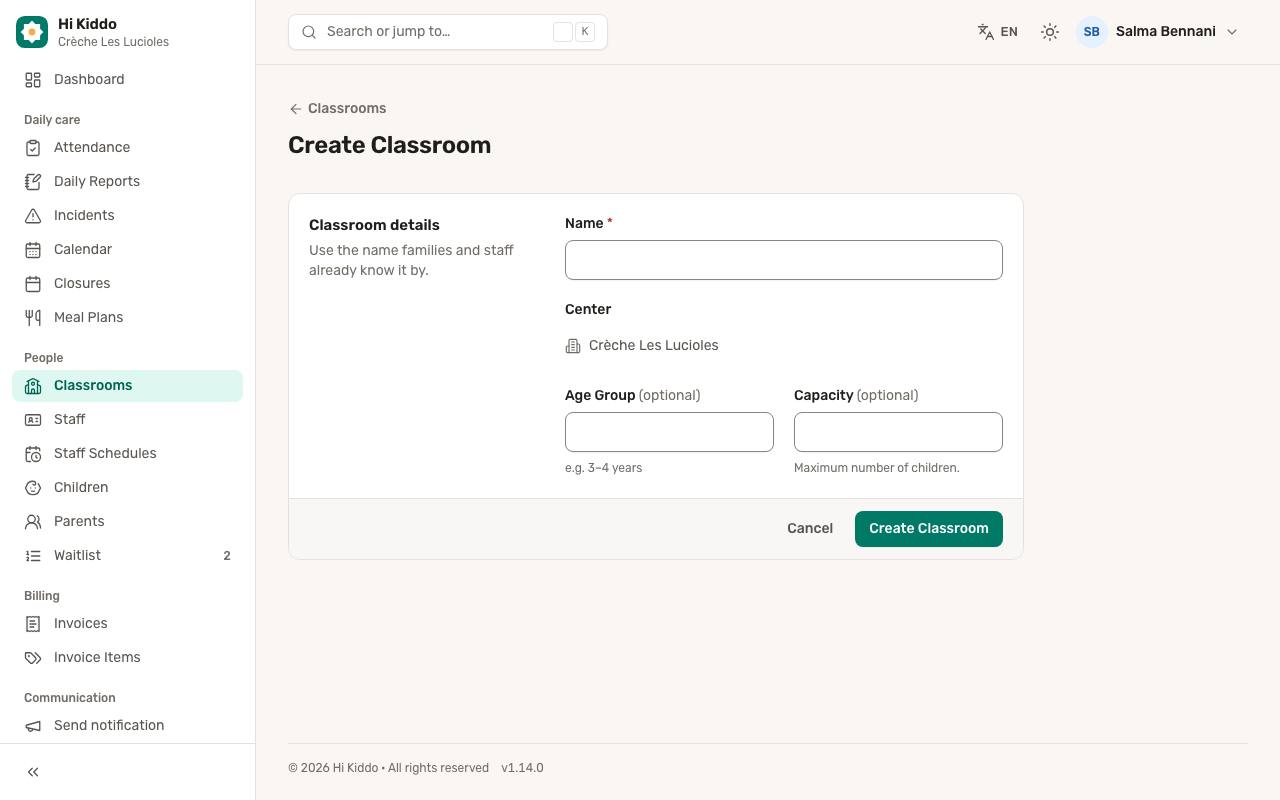
- On the Classrooms page, click Add Classroom.
- Type the Name. Use the name families and staff already know it by.
- Optionally, fill in the Age Group, for example "3–4 years".
- Optionally, set the Capacity: the maximum number of children.
- Click Create Classroom.
Your center is filled in for you. Creating your first classroom completes a step of the setup guide.
How to edit a classroom
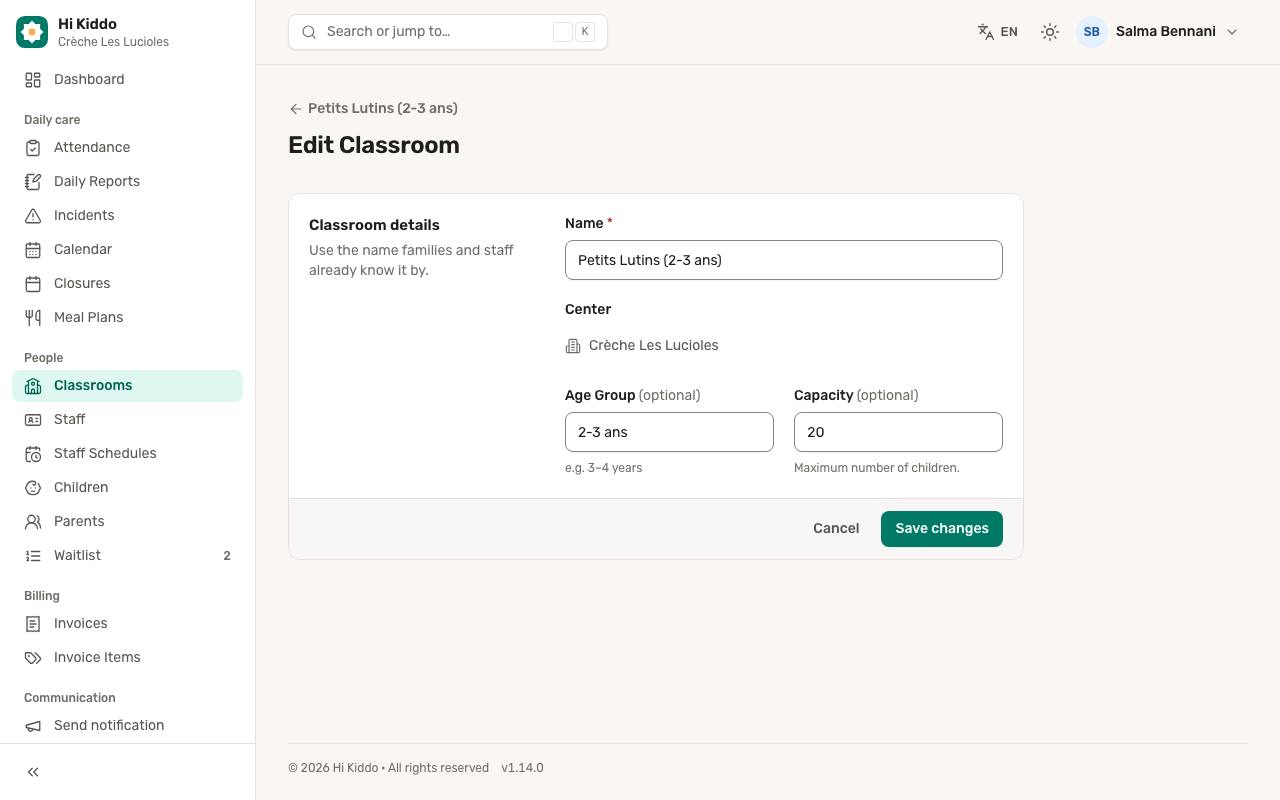
- On the Classrooms page, click the pencil icon (Edit) on the classroom's row. You can also open the classroom and click Edit at the top.
- Change the Name, Age Group or Capacity.
- Click Save changes.
How to deactivate a classroom
- On the Classrooms page, click the power icon (Deactivate) on the classroom's row.
- Confirm by clicking Deactivate classroom.
A deactivated classroom is no longer offered when enrolling children, planning events or scheduling staff. Children already in it keep their place. It shows as Inactive in the list (use the status filter to find it).
To use it again, click the rotate icon (Reactivate) where Deactivate was.
The classroom page
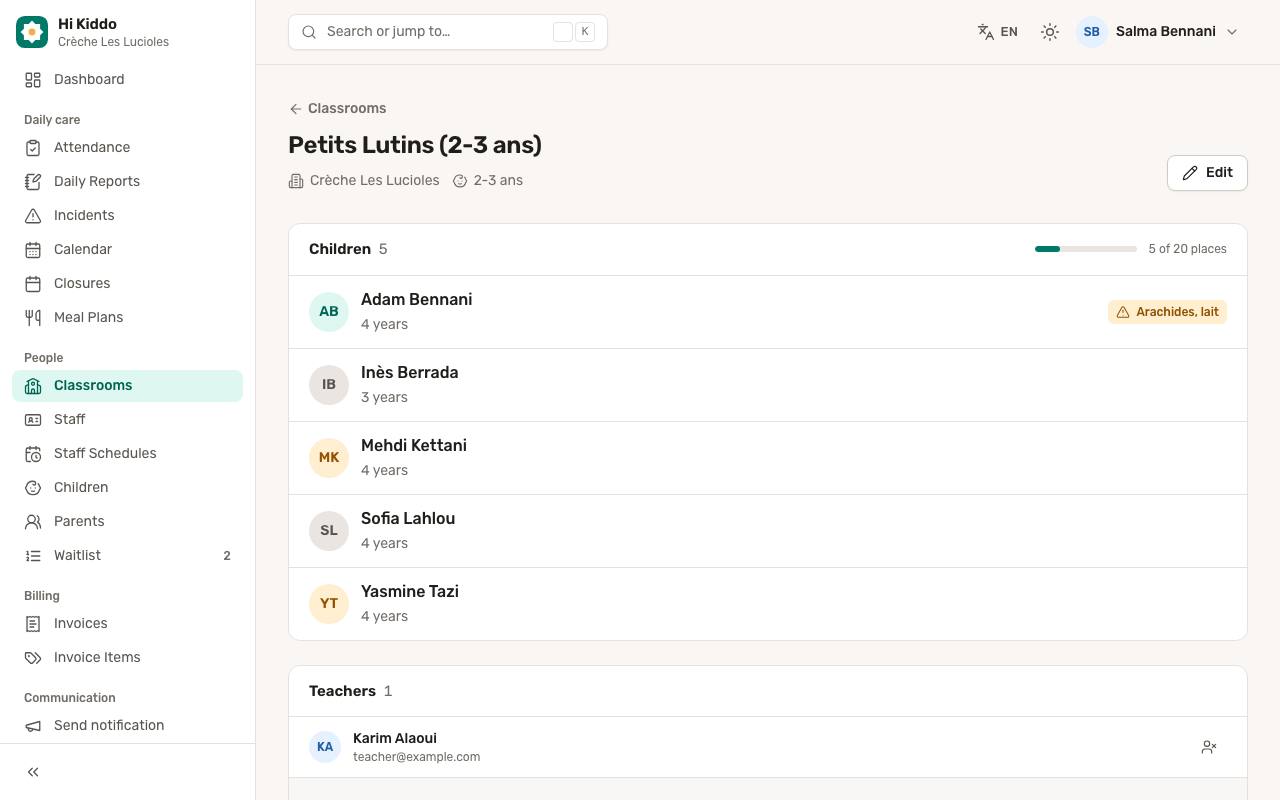
Open a classroom to see:
- Children: the children in the room, with their age, an allergy badge when they have allergies, and an Inactive badge if relevant. Click a name to open the child's profile. If you set a capacity, a bar shows how full the room is, for example "12 of 15 places".
- Teachers: everyone assigned to the room.
How to assign a teacher
- Open the classroom.
- In the Teachers card, under Assign a teacher, pick someone from Select teacher to assign.... The list shows your center's teachers and directors who aren't in this room yet.
- Click Assign, then confirm. The person will see this classroom and its children in the app.
You can also choose a teacher's classrooms from their account form, in Assigned classrooms. See Staff.
How to remove a teacher from a classroom
- Open the classroom.
- In the Teachers card, click the remove icon next to the teacher.
- Confirm by clicking Remove teacher.
They no longer see this classroom and its children. Their account is not affected.
Good to know
- Capacity is a guide. Hi Kiddo shows how full the room is but does not stop you from adding more children.
- Your plan may limit how many active classrooms you can have. If you reach the limit, a message appears with a link to the plans. See Plan and billing.
- Moving a child to another classroom is done on the child's form. See Children.
- If you assign a director to a classroom here, then save that director's account on the Staff page, their classroom assignments are cleared. Only teachers keep classrooms from the account form.
Troubleshooting
A teacher says they can't see any class. Check that they are assigned on the classroom page, or in Assigned classrooms on their account. Until then, their My Classes page is empty.
The teacher I want isn't in the "Assign a teacher" list. The list only shows teachers and directors of your center who are not already assigned to this room. Create their account first on the Staff page.
I can't find an old classroom. It was probably deactivated. Click Filter and choose Inactive.