Planning staff schedules
Plan your team's shifts week by week, and approve or deny time-off requests.
Where to find it
In the left menu, under People, click Staff Schedules. Only directors can open it.
The page shows one week at a time, Monday to Friday. Each row is a staff member (your directors and teachers) and each column is a day.
Reading the weekly schedule
- Use Previous Week and Next Week to move between weeks. The dates of the week are shown in the middle, with Current Week under them when you are looking at this week.
- Each cell shows the shift: its status, start and end time, and the classroom if one is set. An empty cell says No shift.
- The colour key at the top explains the four statuses: Scheduled (yellow), Confirmed (green), Absent (red) and Substitute (blue).
How to plan or change a week
- Go to the week you want with Previous Week or Next Week.
- Click Edit Schedule. Every cell becomes editable.
- For each person and day you want to plan, fill in:
- the start time and the end time of the shift,
- the classroom, or keep No classroom,
- the status: Scheduled, Confirmed, Absent or Substitute.
- To remove a shift, clear its start and end times.
- Click Save Week Schedule.
A message confirms "Weekly schedule saved successfully." and you are taken back to the same week.
Click Cancel to leave without saving.
Tips for filling the grid
- Each person has at most one shift per day. Saving a day that already has a shift replaces it.
- A cell needs both a start and an end time to be saved. If either is empty, any shift for that day is removed.
- If you leave the status empty, the shift is saved as Scheduled.
- Only active classrooms appear in the classroom list. See Classrooms.
How to review time-off requests
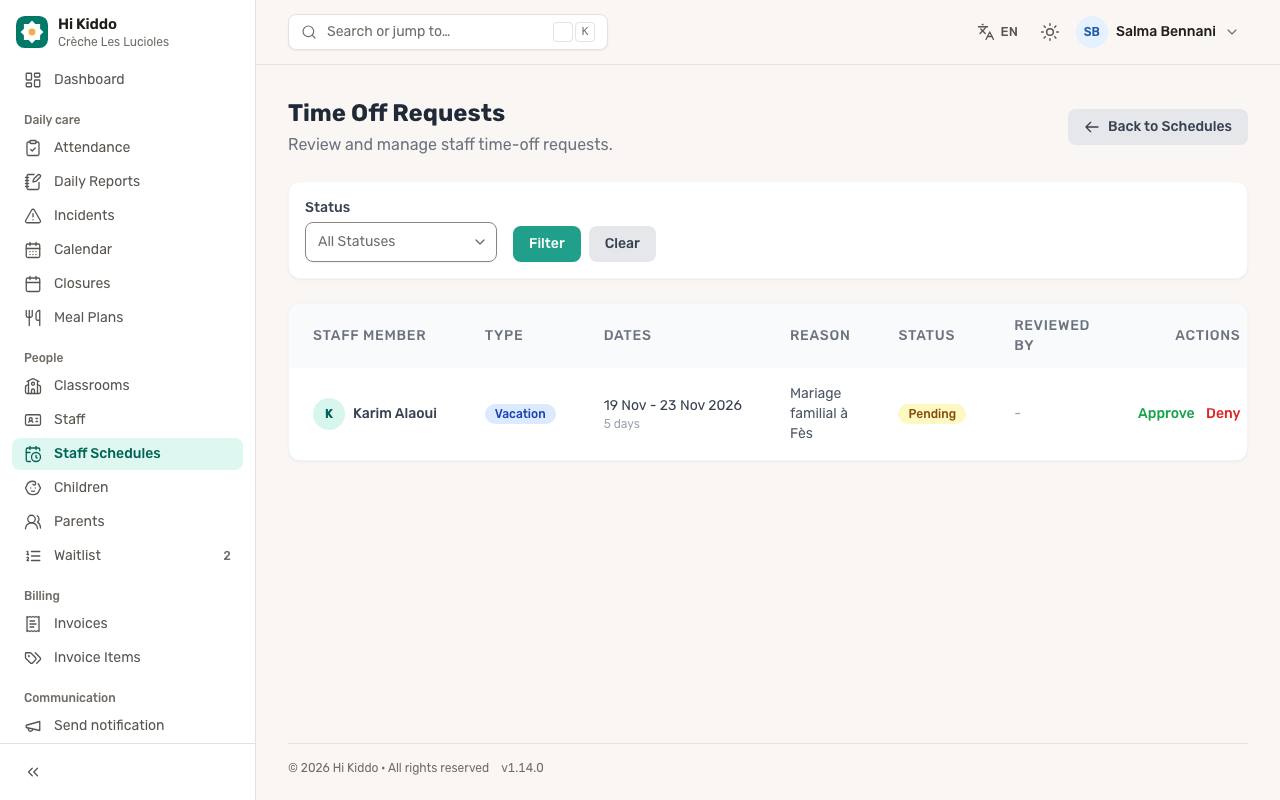
- On the Staff Schedules page, click Time Off Requests.
- The list shows each request with the Staff Member, Type (for example vacation, sick or personal), Dates with the number of days, Reason, Status and Reviewed By.
- To narrow the list, choose a Status (Pending, Approved or Denied) and click Filter. Click Clear to see everything again.
- For a pending request, click Approve, or click Deny and confirm.
Once a request has been answered, it shows Reviewed and the name of the person who reviewed it. Click Back to Schedules to return to the weekly view.
Approving or denying a request only changes its status. It doesn't change the weekly schedule, so update the person's shifts yourself if needed, for example by setting the day to Absent.
The Needs attention list on your dashboard counts pending time-off requests and links straight to this page.
Good to know
- The schedule covers weekdays only. Saturday and Sunday are not shown.
- Everyone with the Center Admin or Teacher role in your center appears in the grid. To add someone, create their account first on the Staff page.
- Hi Kiddo doesn't send any email or notification when you save a schedule or answer a time-off request. Let your team know yourself.
Troubleshooting
A shift I typed disappeared after saving. Both the start and end time must be filled in. If one is missing, the shift for that day is removed.
Someone is missing from the grid. Check that they have a director or teacher account in your center on the Staff page.
The classroom I want isn't in the list. It may have been deactivated. Only active classrooms can be chosen.