Managing authorized pickups
Record the people other than the parents who may collect a child, with their ID and how long the permission lasts.
Where to find it
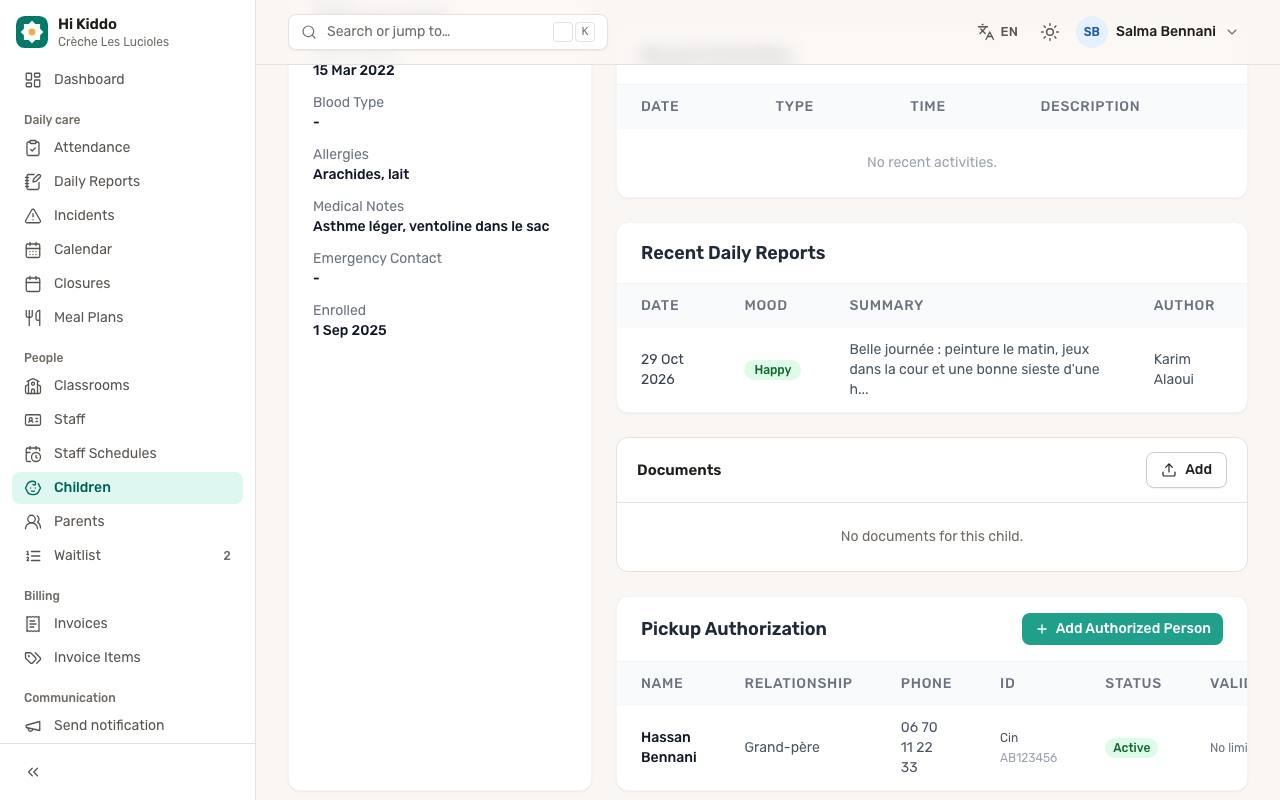
Authorized pickups live on each child's profile.
- In the left menu, under People, click Children.
- Click the child's name to open their profile.
- Scroll to the Pickup Authorization card.
Only directors can add, edit or deactivate authorized people from the dashboard. Teachers see the list without the Add Authorized Person, Edit and Deactivate buttons.
Reading the list
Each authorized person is shown with:
- Name
- Relationship to the child, for example grandmother or nanny
- Phone
- their ID type and number, if recorded
- Status:
- Active: allowed to collect the child today,
- Expired: outside the dates you set (not started yet, or already over),
- Inactive: you deactivated this permission.
- Validity: the dates the permission covers. No limit means no dates were set. When only one date is set, the other side shows Start or No end.
If nobody has been added yet, the card says so and invites you to click Add Authorized Person.
How to add an authorized person
- On the child's profile, in Pickup Authorization, click Add Authorized Person.
- Choose a Title (Mr or Mrs).
- Fill in First Name and Last Name.
- Fill in the Relationship, for example "grandmother", "uncle" or "nanny".
- Fill in the Phone.
- Optionally, record their ID: choose an ID Type (National ID, Passport or Driver's License) and type the ID Number.
- Optionally, limit the permission in time with Valid From and Valid Until. Valid Until can't be before Valid From.
- Click Save.
Title, first name, last name, relationship and phone are required.
How to change an authorized person
- In the Pickup Authorization card, click Edit on the person's row. The row turns into a small form.
- Change the details or the dates.
- Click Update, or Cancel to leave it as it was.
Extending Valid Until brings an Expired permission back to Active.
How to deactivate an authorized person
- Click Deactivate on the person's row.
- Confirm.
The person stays in the list with the Inactive status, so you keep a record, but they are no longer allowed to collect the child.
How it's used at pick-up time
When staff check a child out in the Hi Kiddo app, they see the list of people who may collect the child: the child's linked parents and every authorized person whose status is Active today. Inactive and expired people are not shown. See Attendance and Mobile app for teachers.
Parents linked to the child don't need to be added here: they are always on the pick-up list. To link a parent, see Children.
Good to know
- Use Valid From and Valid Until for temporary arrangements, such as a grandparent picking up during one holiday week. The permission turns on and off by itself on those dates.
- Recording the ID type and number helps staff check identity at the door when they don't know the person.
- Each child has their own list. A person who collects two siblings must be added to both children.
Troubleshooting
The person doesn't appear in the app at check-out. Check their status on the child's profile. Only Active people are listed: an Expired one needs new dates, an Inactive one must be added again.
"Valid Until" is refused. The end date must be the same day as the start date or later.