Managing your staff
Create accounts for your team, find people by role or classroom, and activate, deactivate or send a new password.
Where to find it
In the left menu, under People, click Staff. The page is called Staff & Users. Only directors can open it.
It lists your center's directors and teachers, newest accounts first. Parents have their own page: see Parents.
Finding someone
At the top of the list:
- Search: type part of a name or email in Search by name or email....
- Filter by Role: pick Center Admin or Teacher, or keep All Roles.
- Classroom: show only the teachers of one classroom, or keep All Classrooms.
Click Filter to apply, or Clear to reset.
Each row shows the person's name and email, Role, Classrooms (click one to open it), Status (Active or Inactive) and Devices. The Devices column shows how many phones are signed in to the Hi Kiddo app, or No devices if they haven't signed in yet.
How to add a staff member
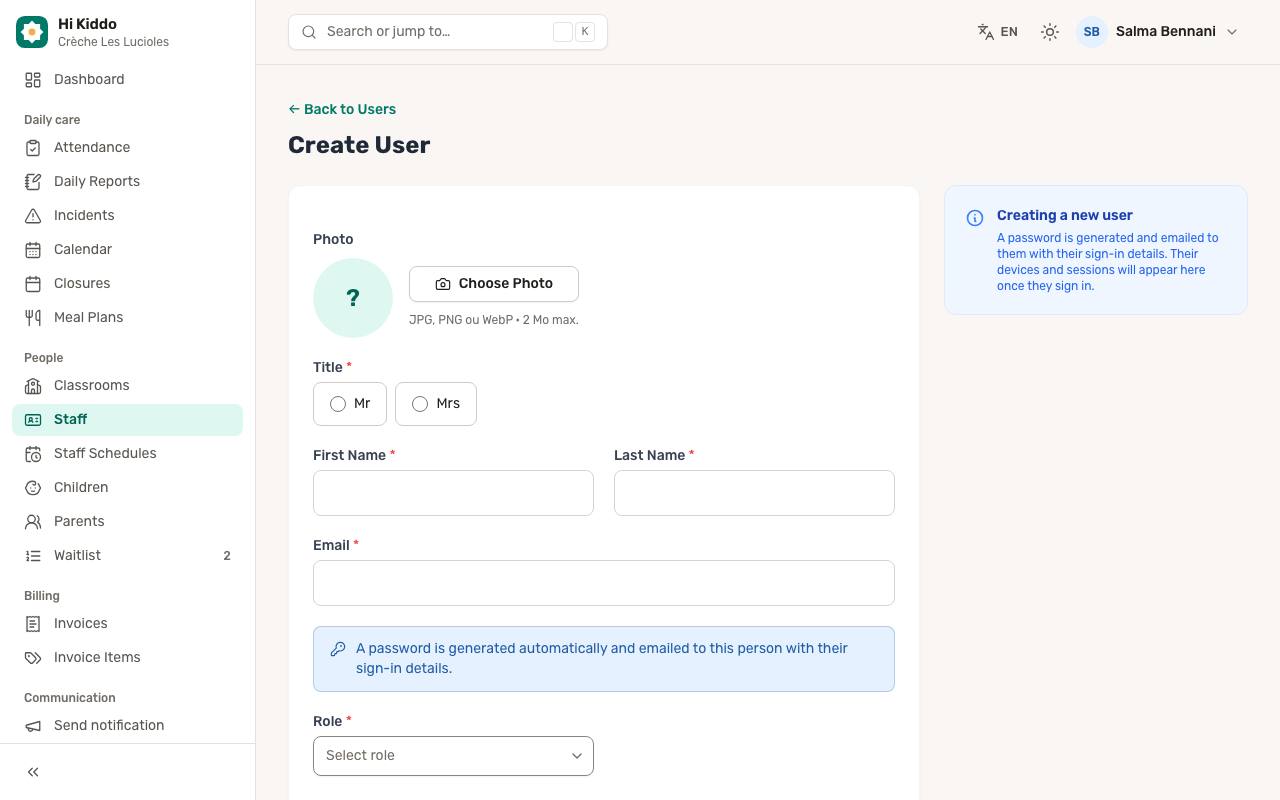
- Click Add User.
- Optionally, add a Photo with Choose Photo (JPG, PNG or WebP, 2 MB max).
- Choose a Title (Mr or Mrs), then fill in First Name and Last Name.
- Type their Email. It must not already be used by another account.
- Choose the Role: Center Admin for another director, or Teacher.
- Optionally, add a Phone.
- Choose the Language of emails and notifications. They can change it themselves later.
- For a teacher, pick their classrooms in Assigned classrooms. They will see those children in the app.
- Click Create User.
You don't choose a password. Hi Kiddo generates one and emails it to the person with their sign-in details for the app and the website. A message confirms: "Account created. The sign-in details were emailed to" their address. Nobody else sees the password.
Adding your first teacher completes a step of the setup guide.
How to edit a staff member
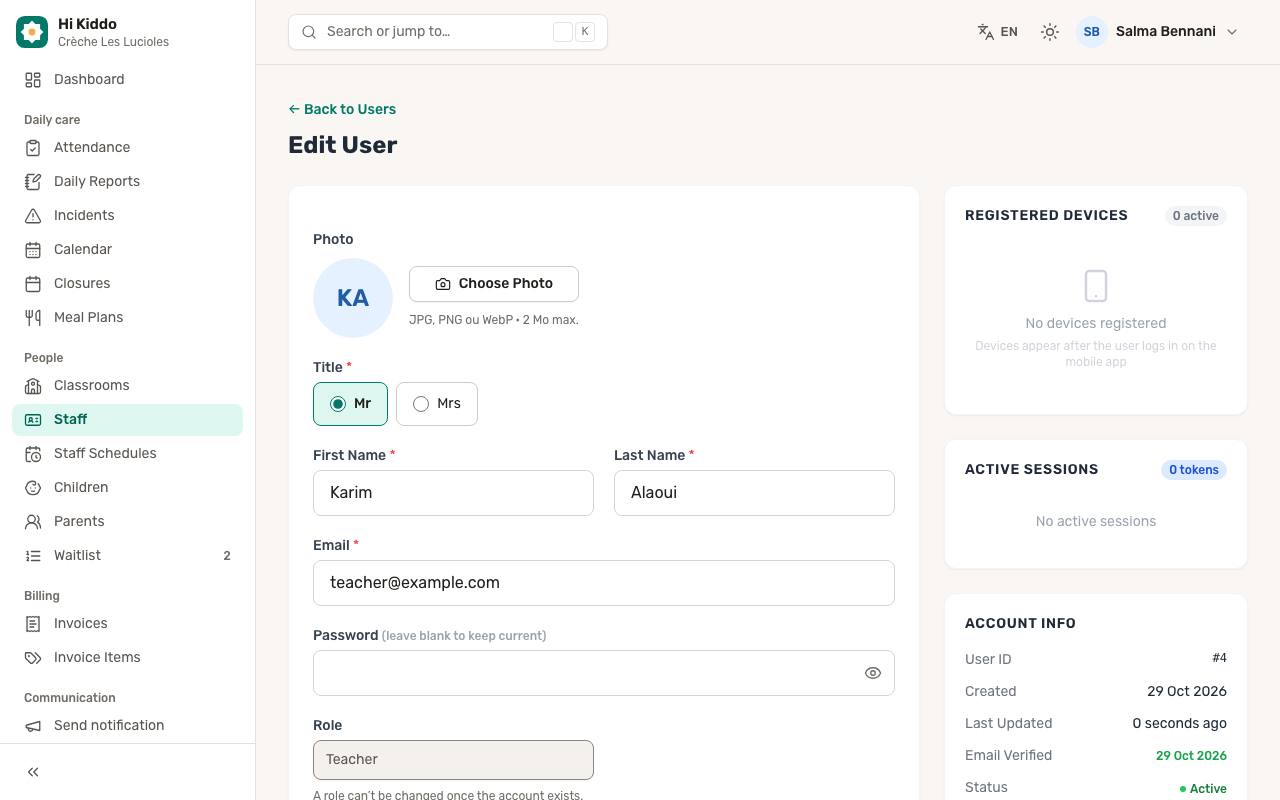
- Click the person's name, or the edit icon (Edit) on their row.
- Change their photo, name, email, phone, language or, for a teacher, Assigned classrooms.
- To set a password yourself, type it in Password. Leave it blank to keep the current one. A new password needs at least 8 characters with an uppercase letter, a lowercase letter and a number.
- Click Update User.
When you change a password, the person is signed out of the app and receives an email saying their password changed.
The role can't be changed once the account exists. The form shows "A role can't be changed once the account exists. Contact Hi Kiddo if it needs to change."
The right side of the edit page shows their Registered Devices, Active Sessions and Account Info.
How to deactivate or activate an account
- On the Staff & Users list, click the pause icon (Deactivate) on the person's row, or the play icon (Activate) for an inactive account.
- Confirm.
A deactivated person can't sign in any more. They are signed out of the app on their next action and their phone stops receiving notifications. Their history (reports, activities, messages) is kept. Activate the account again at any time.
You can't deactivate your own account.
How to send a new password
Use this when someone has forgotten their password.
- Click the key icon (Send a new password) on the person's row.
- Confirm by clicking Send.
A new password is emailed to them. The old one stops working and they are signed out of the app. You never see the new password.
Limits: you can't send one to yourself (change yours in your profile, see Profile and account), the account must be active, and you can send at most 3 new passwords per account per hour. Each one is recorded in the audit log.
How to delete an account
Deleting is only for an account created by mistake or never used.
- Click the bin icon (Delete) on the row.
- Confirm.
If the person already has history (activities, reports, messages, invoices and so on), Hi Kiddo refuses and asks you to deactivate the account instead.
Good to know
- Your plan may limit the number of active directors and teachers. If you reach it, a message appears with a link to the plans. See Plan and billing.
- Teachers can also be assigned from the classroom page. See Classrooms.
- To plan shifts, see Staff schedules.
Troubleshooting
The welcome email didn't arrive. Ask them to check their spam folder, then use Send a new password to send fresh sign-in details.
"Too many new passwords for this account." Wait the number of minutes shown and try again.
"This account is disabled. Enable it first." Activate the account before sending a new password.