Your profile and account
How to update your name, email and phone number, change your password, and choose the language and appearance of the Hi Kiddo dashboard.
Where to find it
Click your name or photo in the top-right corner of any page, then Profile. You can also open the quick-jump search (Ctrl + K, or Cmd + K on a Mac) and type "Profile". The page is called Edit Profile. Every role (platform owner, director, teacher and parent) has one.
How to update your personal information
The left card, Personal Information, holds your details. Your Role and Center are shown at the bottom for information only: you can't change them here. Your director manages them (see Staff and Parents).
- Choose your Title: Mr or Mrs.
- Check your First Name and Last Name (both required, up to 100 characters each). Hi Kiddo builds your full name from them, and that is the name other people see in lists, messages and notifications.
- Update your Phone Number if needed (optional, up to 20 characters), for example +212 6 12 34 56 78.
- Click Save Changes. You see "Profile updated successfully."
Changing your email address
Your email address is the one you sign in with, and where password reset codes are sent. To protect your account, changing it needs your password.
- Type the new address in Email Address.
- A new field appears: Current password (needed to change your email). Type your current password.
- Click Save Changes.
From now on, sign in with the new address. An address can only belong to one account, so you can't use one that someone else already has.
How to change your password
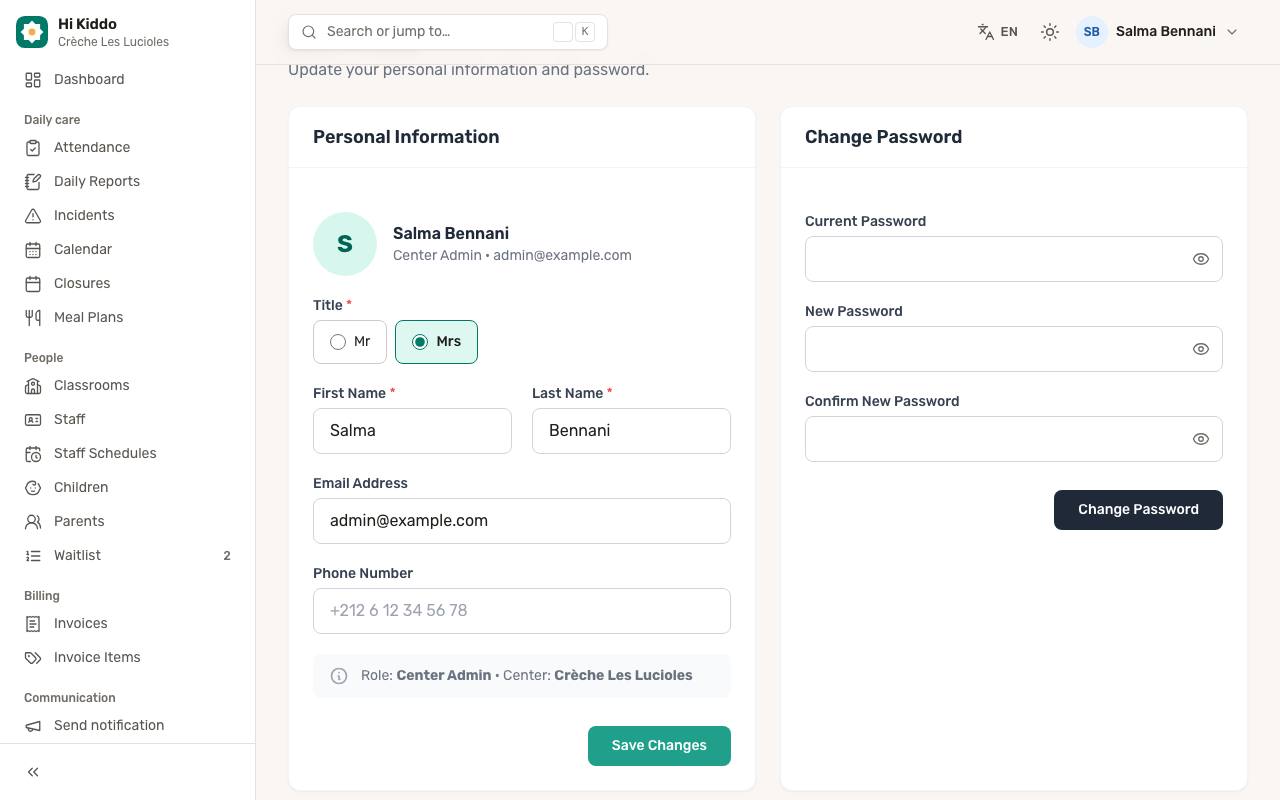
Use the right card, Change Password.
- Type your Current Password.
- Type your New Password, then type it again in Confirm New Password.
- Click Change Password. You see "Password changed successfully."
Your new password must be at least 8 characters long and contain at least one lowercase letter, one uppercase letter and one digit.
What happens next:
- You stay signed in on this browser.
- You are signed out of the Hi Kiddo mobile app and of any other browser where you were signed in. Sign in again there with the new password.
- You receive an email titled "Your Hi Kiddo password was changed". If you didn't make the change, contact your director straight away.
If you have forgotten your current password, sign out and use Forgot password? on the sign-in page instead. See Getting started.
How to choose your language
- Click the language button in the top bar (it shows the current language, for example FR or EN).
- Choose Français, العربية, English or Español.
The whole dashboard switches at once, and Arabic is shown right to left. Your choice is saved to your account, so the emails Hi Kiddo sends you (password codes, notices, invoices) arrive in the same language. On a phone, the language choice is in the menu under your name.
How to choose light or dark mode
- Click the sun or moon button in the top bar (Appearance).
- Choose Light, Dark or System. System follows your computer or phone setting.
This setting is remembered by the browser you are using, so you may need to set it again on another device.
Good to know
- The round badge at the top of the profile card shows the first letter of your name, with your role and email beside it.
- The mobile app has its own account screens: see Mobile app for parents and Mobile app for teachers.
- Directors can also send a staff member or parent a new password from the staff and parent lists, which signs them out of the app.
Troubleshooting
- "Current password is incorrect." Check the password you typed in Current Password. If you can't remember it, use Forgot password? on the sign-in page.
- "The email has already been taken." Another account uses this address. Choose a different one, or ask your director.
- The password field shows an error about format. Make sure the new password has 8 characters or more, with upper and lower case letters and a digit, and that both new password fields match.
- Too many attempts. You can try to change your password a few times per minute. Wait a minute, then try again.