Getting started with Hi Kiddo
How to sign in to the Hi Kiddo dashboard, reset a forgotten password, find your way around the menu and the quick-jump search, and read the messages the dashboard shows you.
Where to find it
The Hi Kiddo dashboard has its own private sign-in address: hikiddo.ma/admin/portal. Bookmark it. For privacy, if you open a dashboard page while signed out, you see a "page not found" screen instead of the sign-in page.
How to sign in
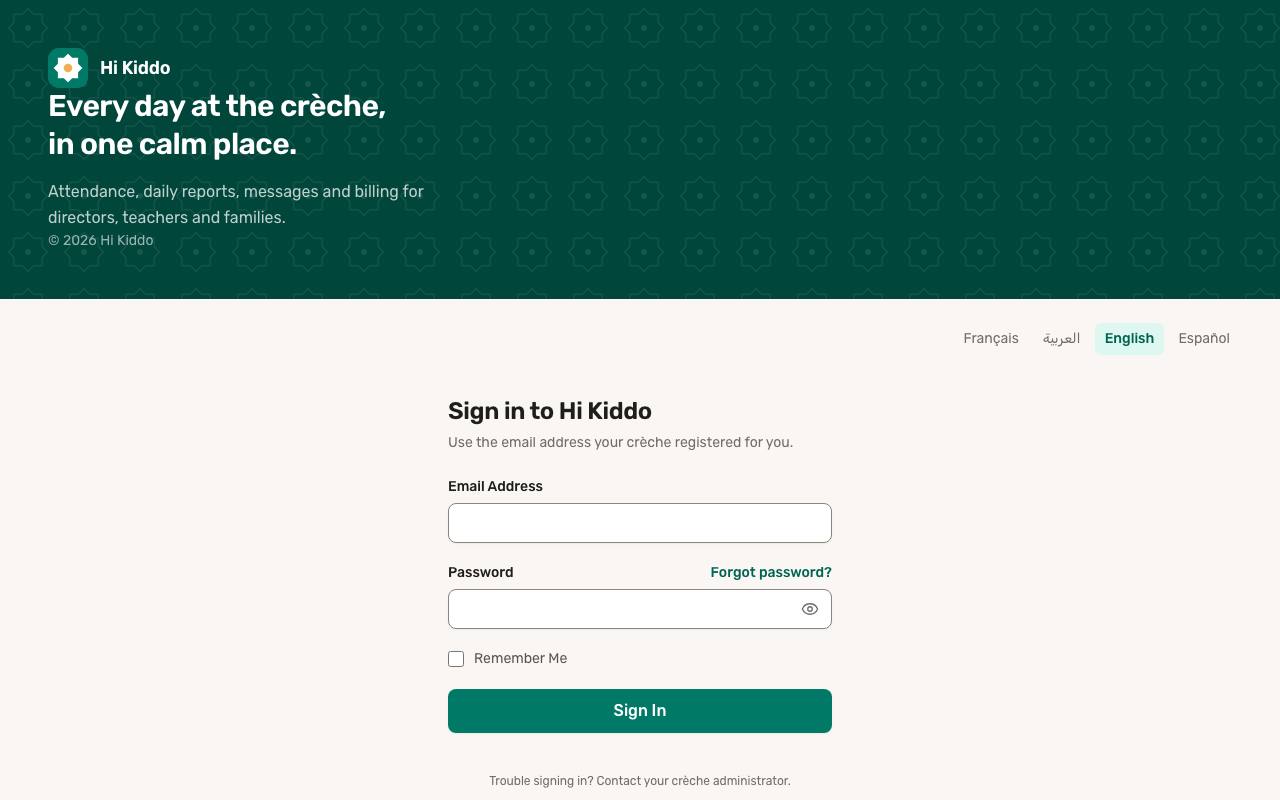
- Go to hikiddo.ma/admin/portal. The page is titled Sign in to Hi Kiddo.
- Enter your Email Address: the one your crèche registered for you.
- Enter your Password (Show password reveals it).
- Tick Remember Me on your own computer to stay signed in.
- Click Sign In. You land on your Dashboard, or on the page you were trying to open.
To sign out, click your name or photo in the top-right corner, then Logout.
How to reset a forgotten password
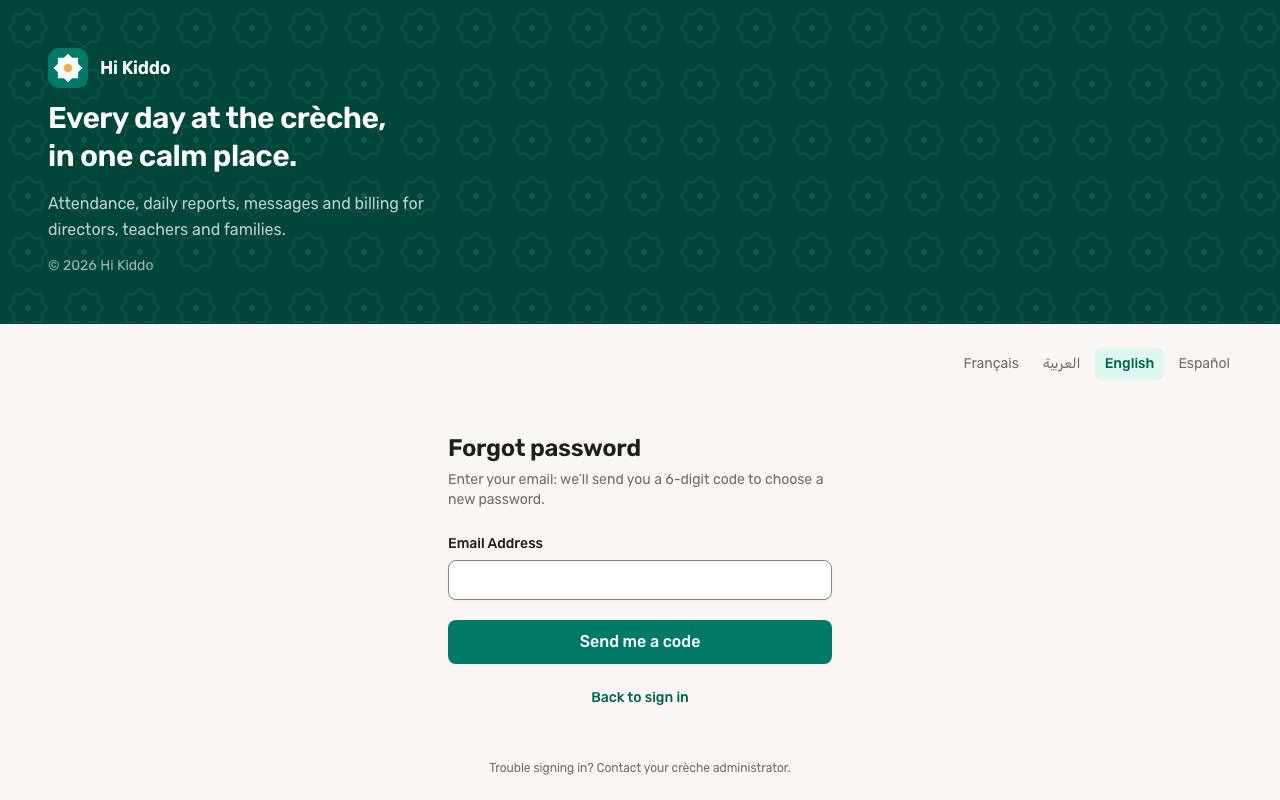
- On the sign-in page, click Forgot password?.
- Enter your Email Address and click Send me a code.
- Check your inbox for the email "Your Hi Kiddo code". The 6-digit code is valid for 15 minutes.
- On the New password page, type the 6-digit code, then your new password in New password and Confirm the password.
- Click Change password. You go back to the sign-in page, where you can sign in with the new password.
The new password needs at least 8 characters, with an uppercase letter, a lowercase letter and a digit. This signs you out everywhere else (the mobile app, other browsers), and an email confirms the change.
The sidebar menu
The menu on the left is grouped by task, and what you see depends on your role. Everyone has Dashboard at the top.
- Center directors see Daily care (Attendance, Daily Reports, Incidents, Calendar, Closures, Meal Plans), People (Classrooms, Staff, Staff Schedules, Children, Parents, Waitlist), Billing (Invoices, Invoice Items), Communication (Send notification, Documents) and Settings (Center settings, Plan).
- Teachers see Day to day: My Classes, My Children, Attendance, Daily Reports, Incidents and Calendar.
- Parents see Day to day: My Children, Attendance, Daily Reports and Calendar.
- The platform owner also sees Platform (Centers, Analytics, Subscription Plans, Center Subscriptions, Platform Payments, Bug reports, Contact requests, Emails), plus Chat history, Activity Types and Audit Log.
A number next to a menu item shows how many things wait for you. On a large screen, Collapse sidebar at the bottom shrinks the menu to icons. On a phone, tap the menu button at the top left to open it.
The quick-jump search
The Search or jump to… box at the top of every page lets you reach any page without the menu.
- Press Ctrl + K (or Cmd + K on a Mac), or the / key when you are not typing in a field. You can also click the box, or the magnifying glass on a phone.
- Type part of a page name, for example "invoices".
- Choose a result with the arrow keys and press Enter. Press Esc to close.
Besides every page in your menu, the list includes Quick actions such as New child, New daily report, New invoice and New event for directors, New incident report for directors and teachers, and Profile for everyone.
Language and appearance
Click the language button in the top bar (for example EN) and choose Français, العربية, English or Español. Arabic reads right to left. Your choice is saved to your account, so your emails follow it too. The sign-in page has the same links. Next to it, Appearance offers Light, Dark or System. On a phone, both are in the menu under your name. See Profile and account.
Banners for directors
- Free trial: during a free trial, a bar at the top shows how many days are left, with a Choose a plan link. See Billing and plan.
- Setup: until your center is fully set up, the bar shows Steps done: X of Y and a Continue setup button. See Setup guide.
- Plan limit: if you try to add more children, staff or classrooms than your plan allows, a yellow warning explains the limit, with a See plans link.
While a new sign-up is being reviewed, after a free trial has ended, or while the subscription is suspended, every page shows one screen explaining why. Nothing is deleted. After a trial, directors can still click Choose a plan; when access is suspended, directors are asked to contact Hi Kiddo at [email protected], and teachers and parents to contact the center.
Messages after an action
- Success: a small card appears at the bottom of the screen (for example "Profile updated successfully.") and disappears after a few seconds.
- Errors, warnings and information: a coloured box appears at the top of the page. Click Dismiss (the cross) to hide it.
- Confirmations: before anything that can't be undone, such as a deletion, a window asks you to confirm. Click Cancel to go back.
Troubleshooting
- "The provided credentials do not match our records." Check your email and password, or use Forgot password?.
- "Too many login attempts. Please try again in a minute." Wait a minute before trying again.
- "Your account has been disabled." Your director (or the Hi Kiddo team) has turned your account off. Contact them.
- "Wrong or expired code." or "Too many attempts." Click Send a new code (one per minute) and use the latest email.
- No code arrived? Check your spam folder and that you typed the email your crèche registered. For privacy, Hi Kiddo never says whether an address has an account.