Waitlist and online enrollment
Keep track of families waiting for a place, move them from offer to enrollment, and let families apply online with a private link.
Where to find it
In the left menu, under People, click Waitlist. A badge on the menu item shows how many entries are waiting. Only directors can open it.
The list is sorted by priority (highest first), then by the date the entry was added. Filter it by Status (Waiting, Offered, Accepted, Declined, Enrolled) or by Classroom, then click Filter. Entries that came from the online form carry an Online badge.
How to add a family to the waitlist
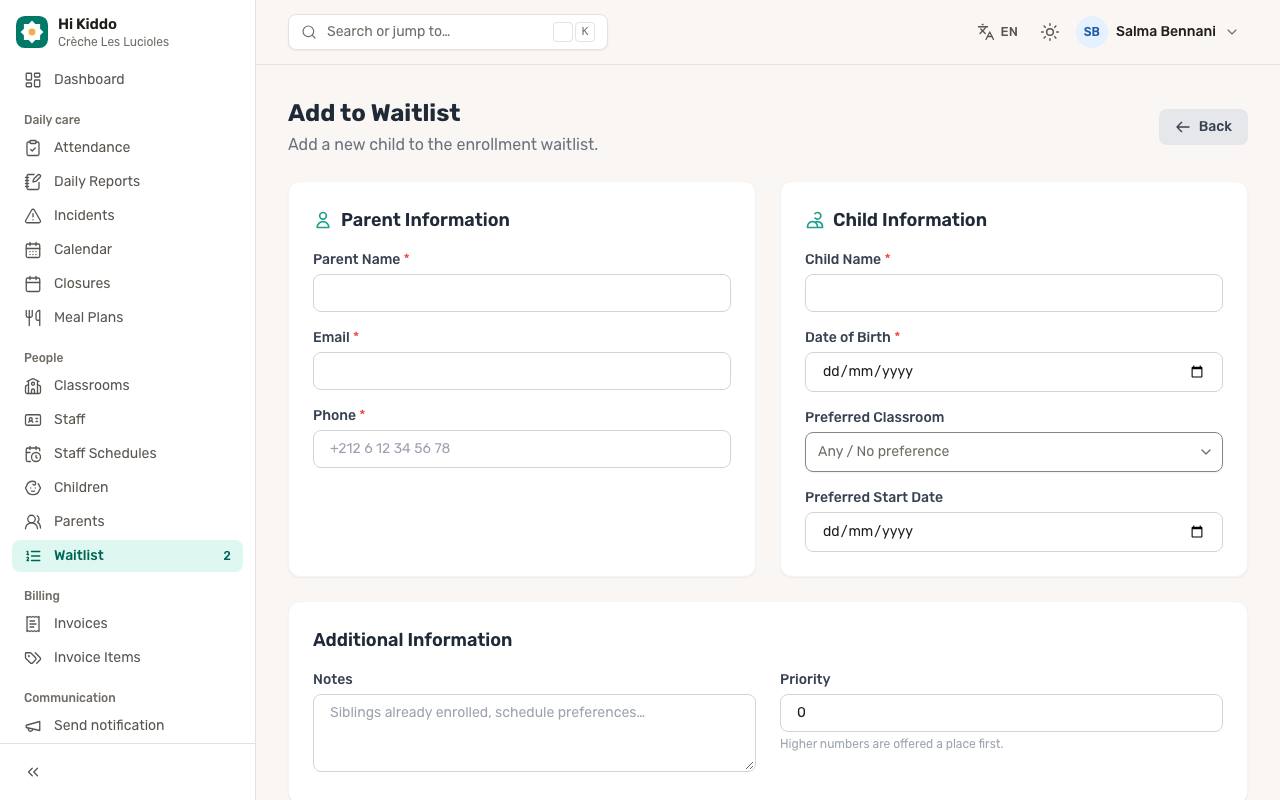
- Click Add to Waitlist.
- Under Parent Information, fill in Parent Name, Email and Phone (all required).
- Under Child Information, fill in Child Name and Date of Birth (required). Optionally pick a Preferred Classroom (or Any / No preference) and a Preferred Start Date.
- Under Additional Information, add Notes and a Priority if you like. Higher numbers are offered a place first.
- Click Add to Waitlist.
To change an entry later, open it and click Edit, then Update Entry.
Moving an entry through the steps
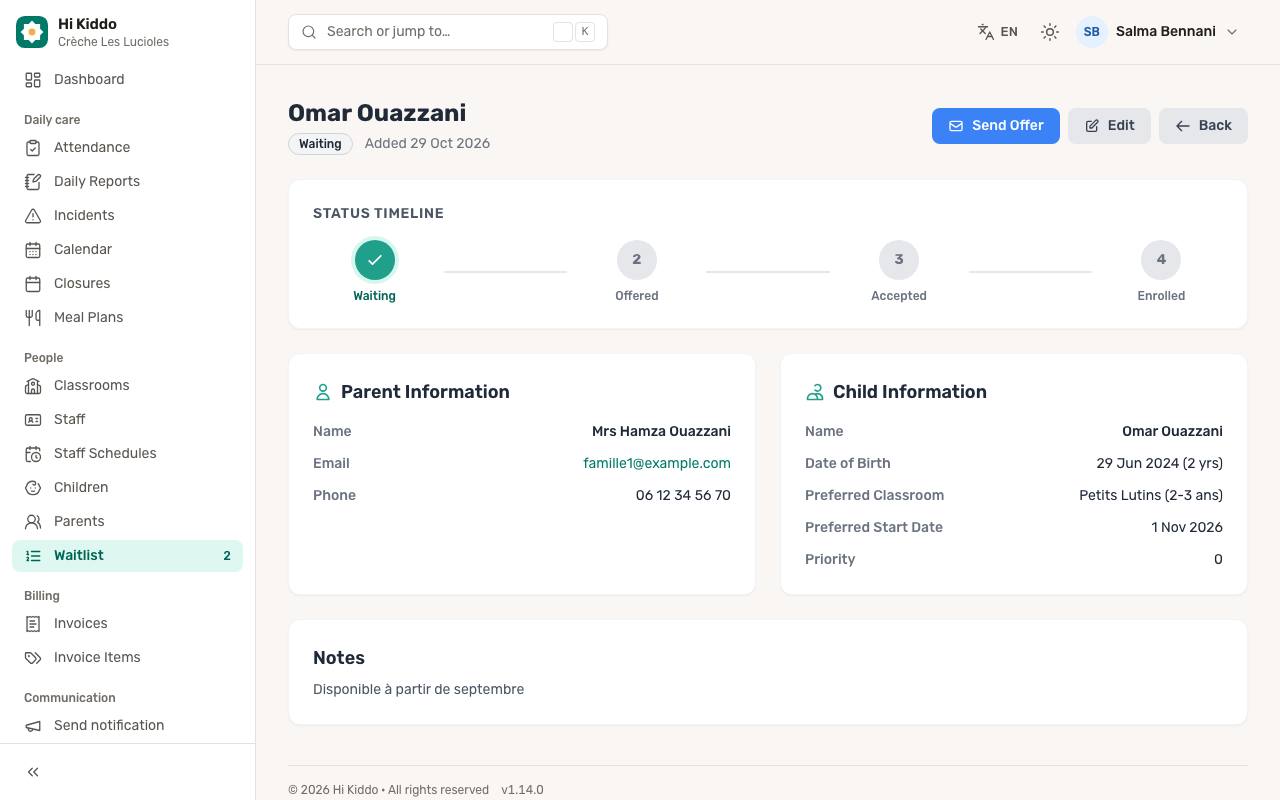
Open an entry with View to see its details and its Status Timeline. The buttons change with the status:
- Waiting: click Send Offer (or Offer in the list) when a place is free. The status becomes Offered, the date is recorded and a message reminds you to tell the family.
- Offered: when the family answers, click Accept or Decline.
- Accepted: click Enroll Child (or Enroll in the list) and confirm.
Hi Kiddo does not email the family when you send an offer: it only records the step. Contact the family yourself.
You can remove an entry that is Waiting or Declined with Remove in the list.
What happens when you enroll
Enrolling creates the child in your center and opens their new profile:
- The child name is split into a first name (the first word) and a last name (the rest).
- The child is placed in the preferred classroom of the entry. If none was chosen, set the classroom on the child's form afterwards.
- The family's email decides the parent account:
- if a parent of your center already uses it, that parent is linked to the child;
- if no account uses it, a parent account is created in your center with the name, title, phone and language of the entry, linked to the child, and the parent is emailed their sign-in details for the app;
- if it belongs to another account (a staff member, or a parent of another center), no parent is linked and a warning asks you to link one from the child's page. See Children.
- For online requests, the attached files and the signed contract move to the child's Documents card.
Enrolling counts against your plan's children limit. Afterwards, complete the child's profile (allergies, emergency contact and so on). See Children.
Online enrollment
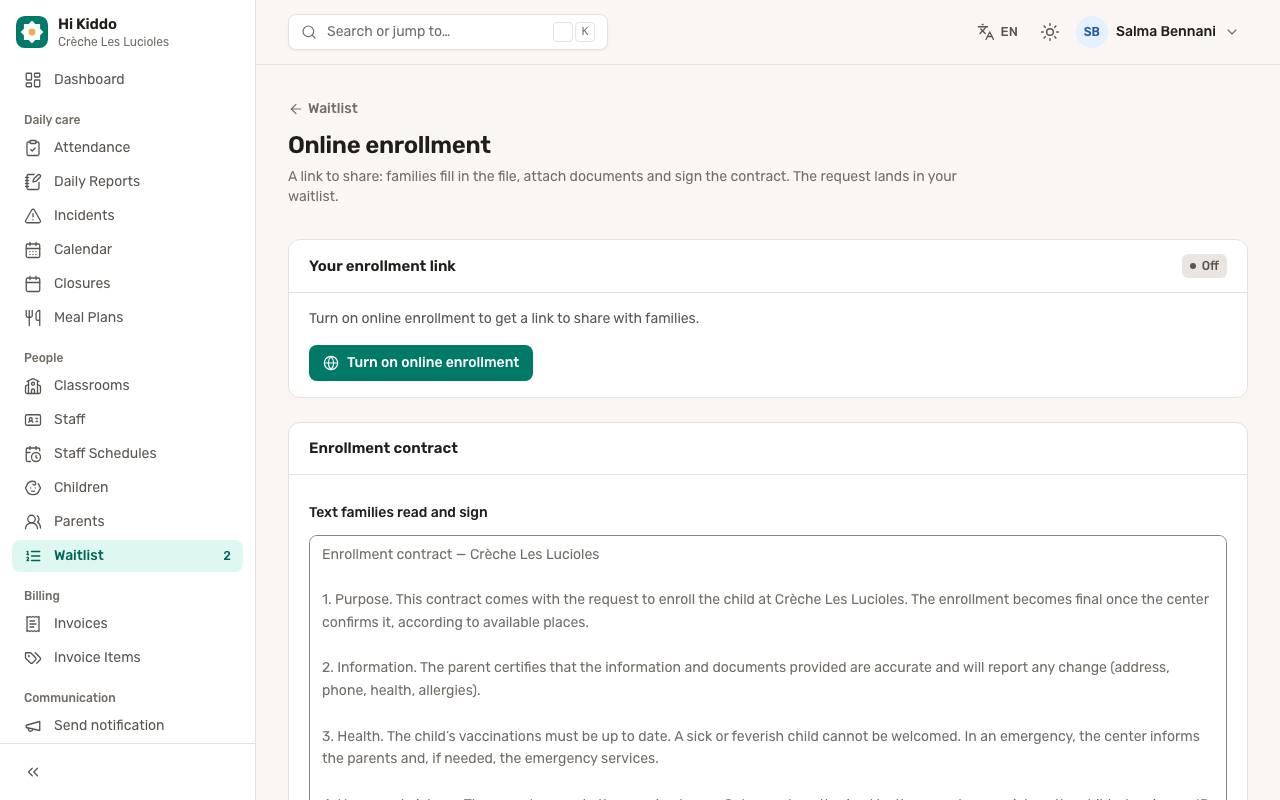
Online enrollment gives you a private link to share on your website, Instagram, Facebook or WhatsApp. Families fill in the file, attach documents and sign your contract, and the request lands in your waitlist.
How to turn it on
- On the Waitlist page, click Online enrollment.
- Click Turn on online enrollment.
- Your link appears under Your enrollment link. Click Copy and share it, or Open to see the form as families do.
New link creates a fresh link and stops the old one working, for example if it was shared somewhere it shouldn't be. Turn off stops the link working; requests already received stay in the waitlist.
How to set your contract
- Under Enrollment contract, type your text in Text families read and sign.
- Click Save.
Leave it empty to use the default text, shown in grey. Each request keeps a copy of the exact text that was signed.
What families fill in
The form opens in French, English or Arabic. Families give:
- the child's first name, last name and date of birth (the child must be under 7), a preferred group and a preferred start date (today or later),
- their title, first name, last name, email and phone,
- up to 5 attachments, such as a birth certificate or vaccination record: PDF, JPG or PNG, 5 MB each,
- what the center should know,
- their acceptance of the contract and a signature: they type their full name.
When they click Send my request, the entry is added as Waiting with the Online badge, and every active director of the center receives an email. Nothing is emailed to the family; the page confirms the request instead.
Reviewing an online request
Open the entry. Under Documents attached, click Download to open each file. Under Signed contract, click Read the signed text to see what they signed and when.
Troubleshooting
Families say the link doesn't work. Check that online enrollment is on. If you clicked New link, share the new one.
The enrolled child has no parent. The family's email is already used by another account (staff, or another center). Link a parent from the child's profile, or create one with a different email on the Parents page and tick the child.
Enroll shows a plan limit message. Your plan is full. See Plan and billing.