Planning calendar events
Add outings, celebrations and meetings to your center's calendar and let families know about them.
Where to find it
In the left menu, click Calendar. Directors find it under Daily care; teachers and parents find it under Day to day. Directors can also open the quick-jump search (Ctrl+K, or ⌘K on a Mac) and choose New event.
Who can do what:
- Directors can create, edit and delete events.
- Teachers see the center-wide events and the events of their own classrooms.
- Parents see the center-wide events and the events of their children's classrooms.
Teachers and parents don't see the New Event button or the edit and delete icons.
Reading the calendar
The Calendar Events page lists the events of one month, starting with the current month. To look at another month:
- Pick it in the Month box.
- Click Filter.
Each event shows its Color, Title (with an All Day badge when it lasts the whole day), Date Range, Location, Classroom (or Center-wide) and Creator. The list shows 15 events per page.
How to create an event
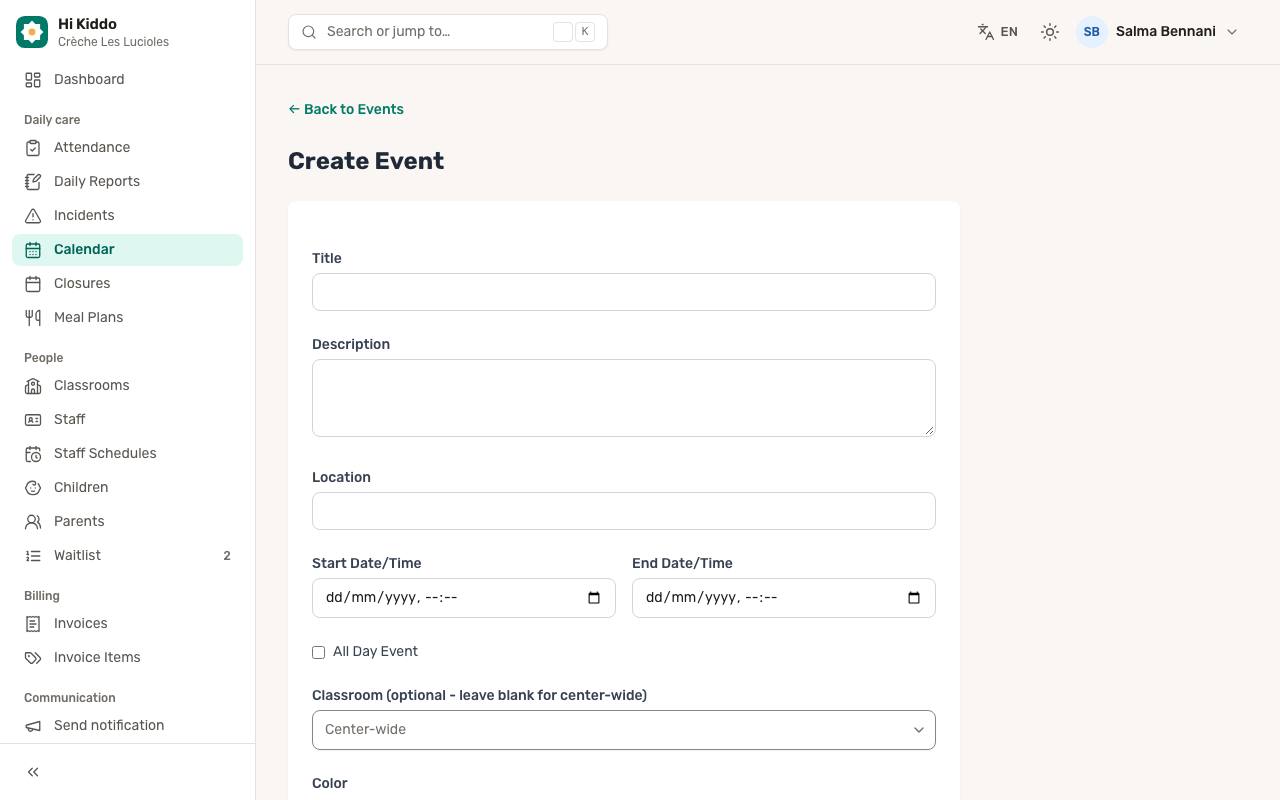
- On the Calendar Events page, click New Event.
- Fill in the form:
- Title (required).
- Description (optional, up to 2,000 characters).
- Location (optional).
- Start Date/Time and End Date/Time (both required). The end cannot be before the start.
- Tick All Day Event if it lasts the whole day.
- Classroom (optional - leave blank for center-wide): choose a classroom to target only that group, or leave it on Center-wide for everyone.
- Color: pick one of the five colors to tell events apart in the list.
- Click Create Event.
Who gets notified
When you create an event, parents receive a push notification in their own language, such as "New event: Spring picnic", with the date (and the time, unless it is an all-day event).
- For a Center-wide event, every parent in your center is notified.
- For a classroom event, only the parents of children in that classroom are notified.
How to edit an event
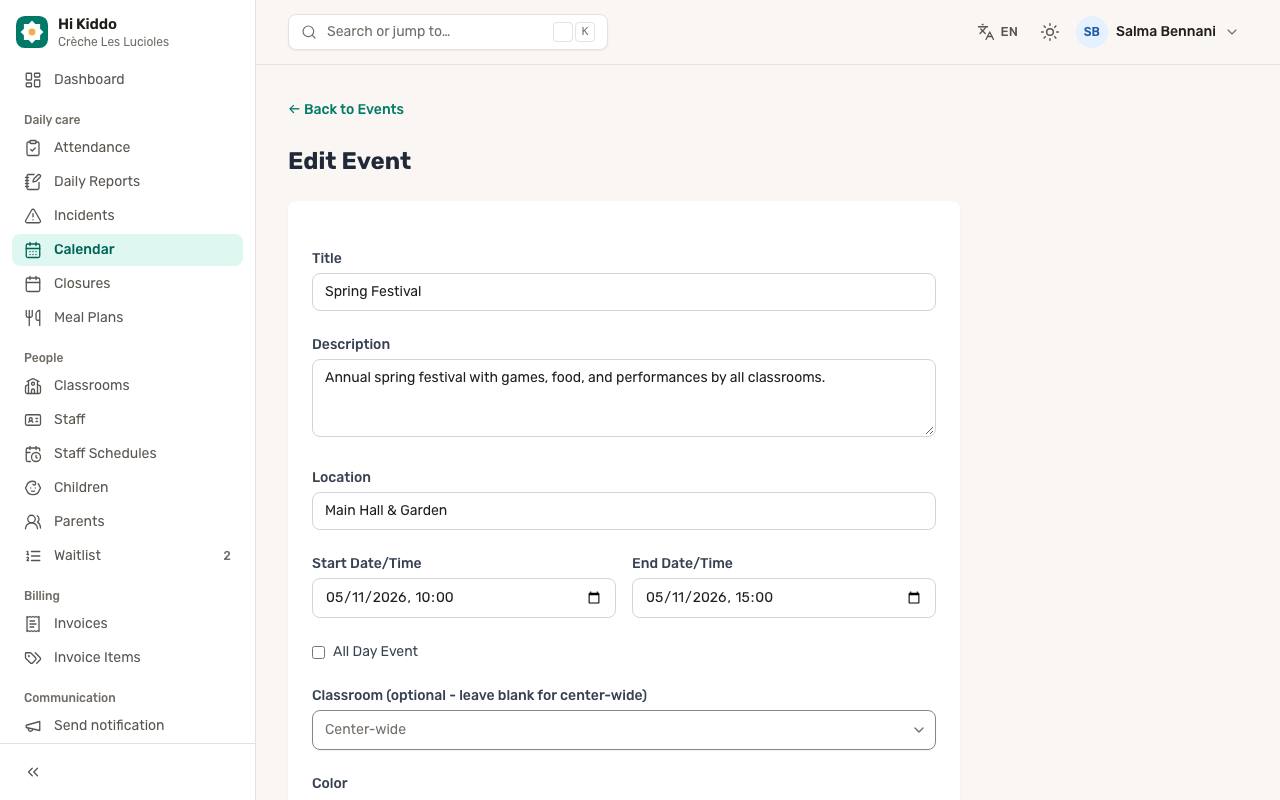
- Click the pencil icon on the event's row.
- Change what you need.
- Click Update Event.
Editing an event does not send a new notification. If you change the date or time of something important, consider telling families with Send notification or Messaging.
How to delete an event
- Click the bin icon on the event's row.
- Confirm with Delete this event?
The event disappears from everyone's calendar. Families are not notified.
Good to know
- An event appears in a month if it starts or ends during that month.
- Platform administrators also choose a Center when creating an event, and can filter the list with All Centers.
- For days when the whole center is closed, use Closures instead.
Troubleshooting
- A parent says they didn't get the notification. Check that the event was created (not just edited), that it targets the right classroom, and that the parent is linked to a child in that classroom. Notifications only reach parents signed in to the app with notifications allowed; see Mobile app for parents.
- I can't save: the end date is refused. The end must be the same as or after the start.