Sharing center documents
Share your rules, menus and policies as files that families and staff can read in the Hi Kiddo app.
Where to find it
In the left menu, under Communication, click Documents. Directors add and remove documents here.
The list shows how many documents you have, newest first. Each one shows its title, category, file size and the date it was added. Documents meant for your team only carry a Staff only label.
These are documents for the whole center. For files about one child, such as a vaccination record, use the Documents card on the child's profile instead. See Children.
How to add a document
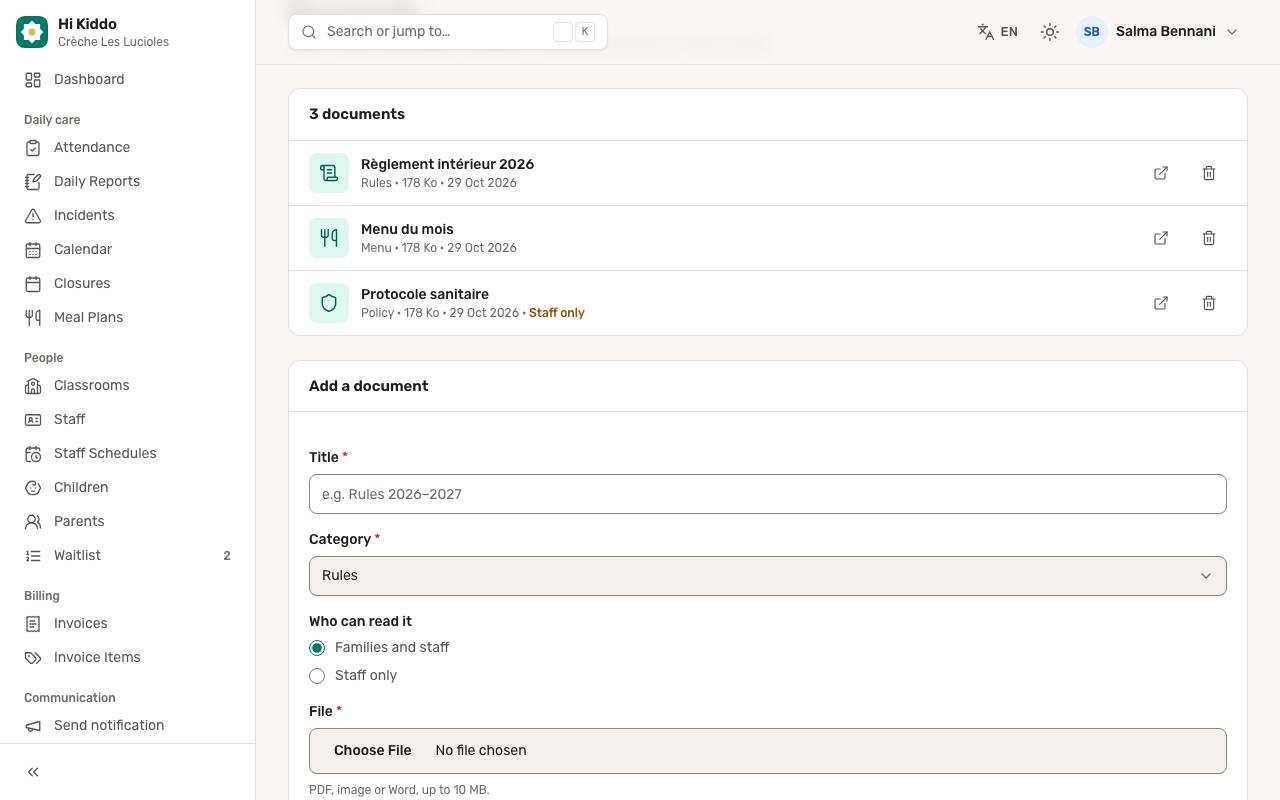
- In the Add a document panel, type a Title, for example "Rules 2026–2027".
- Pick a Category: Rules, Menu, Policy or Other.
- Under Who can read it, choose:
- Families and staff: parents and your team can read it in the app,
- Staff only: only your directors and teachers can read it.
- Choose the File: a PDF, an image (JPG, PNG, WebP) or a Word document (DOC, DOCX), up to 10 MB.
- Keep Tell the families with a notification ticked to send a push notification to parents, or untick it to add the document quietly.
- Click Upload.
A message confirms "Document added" with its title, and it appears at the top of the list.
What families receive
When the document is for Families and staff and you leave the notification ticked, every active parent in your center gets a push notification titled "New document", with the document's title as the text. It arrives in each parent's own language, on phones where they have signed in to the Hi Kiddo app.
Documents marked Staff only never send a notification to parents, even if the box is ticked, and parents never see them.
In the app, parents find the documents shared with families. See Mobile app for parents.
How to open a document
Click the document's title, or the open icon on its row. It opens in a new browser tab, or downloads, depending on the file type.
How to remove a document
- Click the bin icon (Delete) on the document's row.
- Confirm.
The file is deleted and disappears from the app for everyone. This can't be undone, so keep your own copy if you might need it again.
Good to know
- There is no way to edit a document once it is uploaded. To update one, such as a new month's menu, upload the new file and delete the old one.
- Use clear titles with dates, such as "Menu October 2026", so families know which version is current.
- Files are private to your center: only signed-in people of your center can open them.
- For a one-off announcement without a file, use Send a notification. For weekly menus with allergy checks, see Meal plans.
Troubleshooting
My file is refused. Check that it is a PDF, JPG, PNG, WebP, DOC or DOCX file and no bigger than 10 MB.
Parents didn't get a notification. The document must be set to Families and staff and the notification box ticked. Parents also need to have signed in to the app on their phone with notifications allowed.
A parent can't find a document in the app. Check it isn't marked Staff only.